Tayda UV Printing

Does anyone have experience with Vectornator? It's free on the Mac App Store, and I'm pretty sure they offer a PC version. It could be a great FREEE! alternative to Affinity Designer or Adobe Illustrator. From what I can tell it looks a whole lot better than Inkscape/GIMP or something along those lines. My sister is a graphic designer, so I have shared a login to her Adobe account for a while, but she is now splitting with a colleague.
https://www.vectornator.io

This looks pretty good - I think I've used it on iOS once.

A lot of really solid vector programs have popped up over the past few years - nothing that in my opinion can replace Illustrator for industry use (I've railed pretty hard against Affinity in this very thread for that reason) but that are really good for specific use cases. Vectornator looks a lot like Procreate, which has become the go to digital illustration program for the tattoo industry.

 
I’ve been using Vectornator on an iPad Pro and it’s very simple to use. The most “complex” part is you have to split screen the iPad to drag & drop graphics to the layers.

I started with Photoshop, but that doesn’t do vectors. Gimp and Inkscape were a little wonky to use, but Vectornator works great for me.
Haven’t used it for a Tayda UV print setup yet, though, just for inkjet waterslides.
I mostly use .png graphics since it scales them smoothly …almost vector-like.


Once I figure out a design, I load up “potential candidate” graphics in separate layers, then turn on/off and decide which one(s) to use.
Then I turn off the drill template layer, print it, then rattle-can spray a couple of coats of sealer.
Comes out pretty good imo - good enough for simple graphic stuff.
 

Attachments

  • 681F9924-0BA0-46D9-9D89-F76283C4A35B.jpeg
    681F9924-0BA0-46D9-9D89-F76283C4A35B.jpeg
    1.9 MB · Views: 29
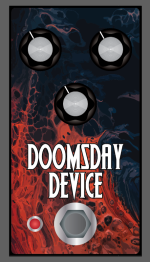
First enclosure with two passes of white (without a color pass) came today. Two passes of white, no color, gloss varnish on matte black sand. Not sure if I was able to capture it in the photo but this is the first time I've printed white on a dark enclosure from Tayda where my reaction was "yep, that's exactly how it should be." I won't be ordering on matte black sand any other way from now on. Absolutely pops.

View attachment 11654
Did you put the gloss varnish layer covering the entire PDF, or just over the white layer? I'm about to make my first print with an orange design on matte black sand enclosure. I'm thinking I want to put the gloss layer over the whole design, including the empty areas where no color will print on the enclosure—mostly so that the orange parts don't look embossed. But I'm just trying to verify that when I export my illustrator artboard as a PDF, the gloss layer on top will be the only thing I see when I look at the PDF.
 
  • Like
Reactions: fig
I'm just trying to verify that when I export my illustrator artboard as a PDF, the gloss layer on top will be the only thing I see when I look at the PDF.

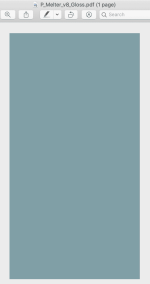
That's right. I did the Pussy Melter that way with a full block of gloss over the whole printable surface area.

Opening the PDF, it just looks like a big blue box. But it printed as expected.


pdf.png
 
Did you put the gloss varnish layer covering the entire PDF, or just over the white layer? I'm about to make my first print with an orange design on matte black sand enclosure. I'm thinking I want to put the gloss layer over the whole design, including the empty areas where no color will print on the enclosure—mostly so that the orange parts don't look embossed. But I'm just trying to verify that when I export my illustrator artboard as a PDF, the gloss layer on top will be the only thing I see when I look at the PDF.

It was just over the white layer. My production PDF was my design on the white layer and on the gloss layer without any changes other the changes in the spot fill color.
 
Right, I've hit my Illustrator wall, hopefully someone can point out where I'm going wrong. I've done a bunch of successful prints just using white/colour text and simple, non-overlapping graphics. This time I want to do a full colour image print. I've converted the image to vectors using Trace Image, but I'm having trouble with the Pathfinder, trying to punch text out of the vector image. When I select the text over the vector group and use Minus Front, it minuses everything except a tiny fragment from the vector group. I have been messing around in menus trying to get this white text punched through for print purposes, but no luck. Where am I going wrong, kind sirs?

Screenshot 2022-01-06 233039.png
 
  • Love
Reactions: fig
Do you have the Vector image grouped? Sometimes with larger, more sophisticated vector images, especially with a large amount of individual "parts", you have to group them as a single object.
Thanks BM, they are indeed grouped, and not complying with my wishes :mad: 😂
 
Have you tried it with the TRIM function?
TRIM function didn't work, but I did nut it out in the end. I had to select the overlapping text and image paths, use DIVIDE in the Pathfinder, ungroup, and then delete all the tiny white pieces where the text previously was. Took a long time and wasn't necessarily fun, but it's worked out how I intended.
 
TRIM function didn't work, but I did nut it out in the end. I had to select the overlapping text and image paths, use DIVIDE in the Pathfinder, ungroup, and then delete all the tiny white pieces where the text previously was. Took a long time and wasn't necessarily fun, but it's worked out how I intended.
Most of the time, it works well, but I remember one or 2 instances where it was a similar scenario to yours with complicated vectors.

When you have to delete multiple items like that, I find that hiding/locking the rest and using the Select->same fill color command helps to speed things up.
 
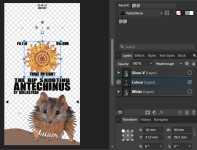
Hi All, I have a question. I have a black object group (was text) over a a coloured object group (vectored image). I was wondering if I need to merge these in the COLOUR layer somehow, or will the black print over the colour as it's sitting above it in the layer? 1641877906540.png
 
Hi All, I have a question. I have a black object group (was text) over a a coloured object group (vectored image). I was wondering if I need to merge these in the COLOUR layer somehow, or will the black print over the colour as it's sitting above it in the layer? View attachment 21325
Everything that is not white needs to go in the COLOR layer. Only layers that should be present when sending a PDF to Tayda is GLOSS-V (or GLOSS-M), COLOR, and WHITE. In fact, I recommend setting them in that order so that you can get a clear idea on how the layers will stack. WHITE gets printed first, then COLOR, then GLOSS.

Also, while not technically required, it's recommended that you avoid overlap if possible. So, for the black text over color, if you can pop out the areas of color where the black is overlapping it'll insure that the black text is as dark as it can be. Again, not required...but it can help in certain cases.

Lastly, if you're printing on a fairly dark enclosure, it's recommended that you take everything in the color layer, copy it to WHITE, merge all the layers, and set them to the correct RDG_WHITE value. The reason is that colors don't print well on darker enclosures. Printing a white layer where the color will go first will help give the COLOR layer something to print on other than the enclosure itself and will lead to better results.

Man...I need to get my video tutorial done. This is the kind of stuff that's easier to explain by doing. :P
 
My questions is in regards to having black text over the image within the color layer. I'm after a flatten or merge function to combine the items to avoid overlap, I just couldn't see how to do it in a quick google search of Affinity.

To clarify you say "copy it to WHITE, merge all the layers, and set them to the correct RDG_WHITE value". You say merge all layers, but I'm assuming you mean merge all items within that layer. How do you do that?

I've been referencing the Pachyderm pedals tutorial, it's been really good for newbies like me.

Cheers @jeffwhitfield

EDIT: I found a response by @finebyfine to one of my earlier posts in regards to this, which he explains how to do this in Illustrator but I'm still yet to work out how to do it in Affinity. I'm trying clipping masks at the moment. I believe I may of misunderstood you earlier, where I've asked for clarification in regards to merging layers. Do you mean pixel layers? Thanks.
 
Last edited:
To clarify you say "copy it to WHITE, merge all the layers, and set them to the correct RDG_WHITE value". You say merge all layers, but I'm assuming you mean merge all items within that layer. How do you do that?

EDIT: I found a response by @finebyfine to one of my earlier posts in regards to this, which he explains how to do this in Illustrator but I'm still yet to work out how to do it in Affinity. I'm trying clipping masks at the moment. I believe I may of misunderstood you earlier, where I've asked for clarification in regards to merging layers. Do you mean pixel layers? Thanks.

I'm not sure if these are the same question, but this is at least an answer to the first.

On the white layer select all of the items, and then use the add tool to merge them all into one shape, and then apply the rgd_white spot color to it. This will remove overlaps without creating potential gaps from using something like divide - 99 times out of 100 in Illustrator this wouldn't make gaps but that 1 time will be a ball breaker. Affinity's docs are pain to link to for some reason, so if that link doesn't work, search the docs for "joining objects."

If you're trying to select objects that are filled a certain color to copy just those to different layers, you can use the select same tool. If that docs link doesn't work search for "selecting objects."
 
I'm not sure if these are the same question, but this is at least an answer to the first.

On the white layer select all of the items, and then use the add tool to merge them all into one shape, and then apply the rgd_white spot color to it. This will remove overlaps without creating potential gaps from using something like divide - 99 times out of 100 in Illustrator this wouldn't make gaps but that 1 time will be a ball breaker. Affinity's docs are pain to link to for some reason, so if that link doesn't work, search the docs for "joining objects."

If you're trying to select objects that are filled a certain color to copy just those to different layers, you can use the select same tool. If that docs link doesn't work search for "selecting objects."

Thanks @finebyfine. Two slightly different questions, but with the info above I was able to fix both problems with the join tools. I used the Add tool to combine these vectored images in the White and Gloss Layers. In the color layer I used the Divide tool as this maintained the color of each individual image segment and just seemed to delete out the underlaying/cross sectioned parts.

The join tools were greyed out unless I ungrouped the required vectored/merged image's (the text and the mosaic sun). So I was overlooking these in the tool bar until I read you're links above.

Thanks again! This forum is the best.
 
Last edited:
A report from the front lines of Tayda UV printing.

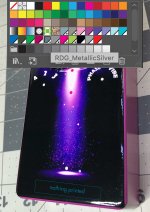
If you've ever been tempted to try the Roland "Metallic Silver" swatch, don't.
I took one for the team, knowing 99% chance it would not print in metallic silver.
Not only that, the text in question didn't print at all. I expected it would translate to a dull grey. But no, nothing printed here. Captain obvious: Don't use the metallic silver swatch with Tayda.


dont-try-metallic-silver.jpg


Using a black box all the way to the edge of a non-back enclosure is not very pretty. But it illustrates how close to the corners you can successfully print.

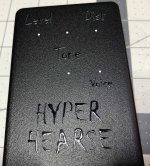
On a positive note, white + black + gloss on textured black powder coat looks just as good as expected.


hyperhearse.jpg
 
CE43B31A-4B6E-477A-9C3F-1F934E2CA33C.jpeg
First mishaps with the UV print (of the 30-something I had printed) You can see that part of the “PRO-FILTER” chipped away, and just from normal handling. The rest seems fine, as I kind of rubbed my finger on the enclosure to test it. @finebyfine did you ever had that issue, I know you printed quite a few on the black matte sand like this?
 
Back
Top