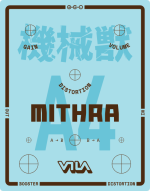
Tayda UV Printing

He, he, the thing is, I’m a sucker for precision, so my idea is to drill exactly where the marks are (nothing should be left behind, and if any little line remains, as you said, washers will cover them, as the circles are the size of the hole, not the washers), and I will modify the pcb to fit exactly. The pots are exactly in place, but I may have miscalculated the switches by a millimeter, I think. I’ll show the enclosure with holes tomorrow.

Edit: bear in mind that everything is mounted on a pcb (switches, pots, jacks), so there’s little margin to move things. I hate cables, so there won’t be any in these pedals. But I need to be precise. And since pcbs are cheap, I don’t mind iterating them.

Here’s what I’ll do:

IMG_7746.jpeg

IMG_7745.jpeg
 
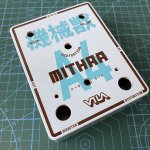
Drilled the enclosure today:

View attachment 53656

And a preliminary test fit:

View attachment 53657


I think I can make the switches pcb work (it still fits as the deviation is not that big), but I think I'll modify it, nevertheless. I don't want to stress the pcb or the components.
I'm a white washer hater so I would ditch those personally, but looks great otherwise!
 
I'm a white washer hater so I would ditch those personally, but looks great otherwise!
Well, I have something to confess there: since the footswitches and the toggle switch are on the same pcb/plane, and the toggle is shorter, I need to put the footswitches as closer to the face of the pedal as possible, to have a bit of thread to screw the nut of the toggle and have a secure hold of it. This makes the footswitches look a bit tall, lots of thread showing, so the white washer helps make them look less weird in this case.
 
Ok, time to add my little grain of sand to this, and try to help other Affinity Designer users.

First of all, for the most part the tutorial by Pachyderm (@dmnCrawler) is what you need. The problem I found with it is that it seems to work for Affinity Designer 1, and not for Affinity Designer 2. Or maybe Tayda changed something, I really have no idea, but I followed it and still kept receiving the "There's no data in your WHITE and GLOSS layers" warnings over and over. So, I decided to look for information out there and keep trying things until it worked. And after 5 or 6 attempts, I finally got something that worked, and my pedals printed.

So, here's what I used to get my pedals printed by Tayda, using Affinity Designer 2.

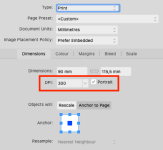
Of course, the first thing you need to check is that your document has at least 300dpi. And that the size is correct. I used 300dpi, and the correct size for the 1590BB I intended to print:

document-01.png

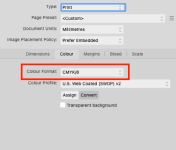
Then check you're using CMYK colors (in my case, I used the SWOP profile since it's a pretty common one):

document-02.png

After that, just create your art following the usual indications: create three layers (GLOSS, COLOR and WHITE), and place all the color in the COLOR layer, and the appropriate shapes in the WHITE and GLOSS layers.

Remember that colors shouldn't overlap. That means that wherever a color is on top of another, you should subtract the top shape from the bottom shape, like this:

The composition:
overlap-01.png

And the subtraction to the bottom shape:
overlap-02.png

Also remember to convert all fonts and basic shapes (circles, boxes) to curves (select the object and choose Layer > Convert to curves). Grouping curves seems to have no negative impact, so use that if it helps. Same for joining curves (I used that for the special layers).

On to the special layers.

After you have everything you need in each layer, you need to apply the special spot colors to the white and gloss layers. Depending on how you have your objects, you can do this at once or you may need to select the specific object and apply to fill and stroke independently.
But first, you need to import the spot colors palette. You can use Pachyderm's palette from the tutorial, or use mine (it's identical) if you want: https://vilaeffectors.com/external/tayda/Roland_VersaWorks_spots.afpalette

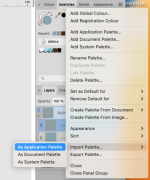
Import this palette as an Application Palette:

palette-01.png

This will allow you to use it for other designs in the future. But if you just need it for this document only, I think importing it as Document Palette works too.
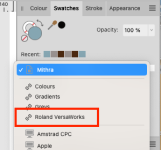
Verify that the palette is imported from the palettes menu, by selecting it:

palette-02.png

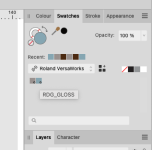
And then check that the color names are correct:

palette-03.png

Now, you need to apply these two colors to the corresponding objects in the layers (WHITE and GLOSS). In my case, I just joined all the objects together and applied the color (I had no strokes in the curves). But you can do it object by object if needed, making sure everything in that layer has only the corresponding spot color.
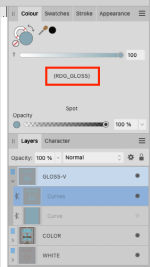
After you apply the colors, it's really important to check that the colors are correctly applied. Select all the objects in the layer and check that the color name in parenthesis is the correct one:

palette-04.png

It should appear as a single color (not CMYK, just s single slider for the color), and the name should be there. If you see empty parenthesis "()" then the spot color won't be used in the PDF. Don't worry if you see the color repeated on top of the parenthesis. That means that the color is a global color. The important part is the name inside the parenthesis, that indicates that it's a spot color.

After you check that, your document will be ready to export. So select File > Export... from the menu, and select the PDF format.
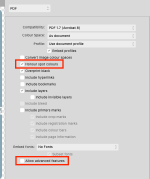
To export my file, I chose "PDF (for print)". And at the end of the options, verify that "Honours spot colours" is checked, and uncheck the "Allow advanced features" option:

export-01.png

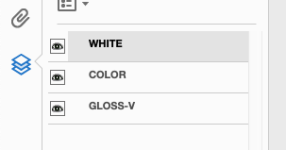
If all goes well, your PDF file will be ready for Tayda. Now, if you want to check it, you can use Acrobat Reader to verify that the layers are there. Just download the app and open the PDF with it. Then select the layer icon from the left, and you'll see the three layers there:

acrobat-01.png

Don't worry if the order of the layers seems inverted, you can verify that they work by clicking on the visibility icon (eye) from bottom to top, and you'll see that they correctly disappear in order (gloss will be on top, covering color and white).

These are the steps that worked for me. If you see that you still get the "data is not present in the layer" warnings, just let me know. Cheers!

 
Last edited:
Ok, time to add my little grain of sand to this, and try to help other Affinity Designer users.

First of all, for the most part the tutorial by Pachyderm (@dmnCrawler) is what you need. The problem I found with it is that it seems to work for Affinity Designer 1, and not for Affinity Designer 2. Or maybe Tayda changed something, I really have no idea, but I followed it and still kept receiving the "There's no data in your WHITE and GLOSS layers" warnings over and over. So, I decided to look for information out there and keep trying things until it worked. And after 5 or 6 attempts, I finally got something that worked, and my pedals printed.

So, here's what I used to get my pedals printed by Tayda, using Affinity Designer 2.

Of course, the first thing you need to check is that your document has at least 300dpi. And that the size is correct. I used 300dpi, and the correct size for the 1590BB I intended to print:

View attachment 53827

Then check you're using CMYK colors (in my case, I used the SWOP profile since it's a pretty common one):

View attachment 53828

After that, just create your art following the usual indications: create three layers (GLOSS, COLOR and WHITE), and place all the color in the COLOR layer, and the appropriate shapes in the WHITE and GLOSS layers.

Remember that colors shouldn't overlap. That means that wherever a color is on top of another, you should subtract the top shape from the bottom shape, like this:

The composition:
View attachment 53829

And the subtraction to the bottom shape:
View attachment 53830

Also remember to convert all fonts and basic shapes (circles, boxes) to curves (select the object and choose Layer > Convert to curves). Grouping curves seems to have no negative impact, so use that if it helps. Same for joining curves (I used that for the special layers).

On to the special layers.

After you have everything you need in each layer, you need to apply the special spot colors to the white and gloss layers. Depending on how you have your objects, you can do this at once or you may need to select the specific object and apply to fill and stroke independently.
But first, you need to import the spot colors palette. You can use Pachyderm's palette from the tutorial, or use mine (it's identical) if you want: https://vilaeffectors.com/external/tayda/Roland_VersaWorks_spots.afpalette

Import this palette as an Application Palette:

View attachment 53831

This will allow you to use it for other designs in the future. But if you just need it for this document only, I think importing it as Document Palette works too.
Verify that the palette is imported from the palettes menu, by selecting it:

View attachment 53832

And then check that the color names are correct:

View attachment 53833

Now, you need to apply these two colors to the corresponding objects in the layers (WHITE and GLOSS). In my case, I just joined all the objects together and applied the color (I had no strokes in the curves). But you can do it object by object if needed, making sure everything in that layer has only the corresponding spot color.
After you apply the colors, it's really important to check that the colors are correctly applied. Select all the objects in the layer and check that the color name in parenthesis is the correct one:

View attachment 53834

It should appear as a single color (not CMYK, just s single slider for the color), and the name should be there. If you see empty parenthesis "()" then the spot color won't be used in the PDF. Don't worry if you see the color repeated on top of the parenthesis. That means that the color is a global color. The important part is the name inside the parenthesis, that indicates that it's a spot color.

After you check that, your document will be ready to export. So select File > Export... from the menu, and select the PDF format.
To export my file, I chose "PDF (for print)". And at the end of the options, verify that "Honours spot colours" is checked, and uncheck the "Allow advanced features" option:

View attachment 53835

If all goes well, your PDF file will be ready for Tayda. Now, if you want to check it, you can use Acrobat Reader to verify that the layers are there. Just download the app and open the PDF with it. Then select the layer icon from the left, and you'll see the three layers there:

View attachment 53836

Don't worry if the order of the layers seems inverted, you can verify that they work by clicking on the visibility icon (eye) from bottom to top, and you'll see that they correctly disappear in order (gloss will be on top, covering color and white).

These are the steps that worked for me. If you see that you still get the "data is not present in the layer" warnings, just let me know. Cheers!
I’ve used both AD1 and AD2 for this purpose and haven’t had issues that weren’t of my own making. A little while back, I created templates with instructions on how to accomplish Tayda UV prints through AD. I posted about it here.

Your print looks wonderful btw!
 
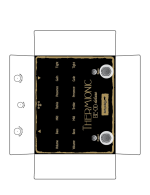
I just wanted to double check if what I'm planning to print will actually print. Reading through Tayda's UV printing instructions it mentions that they can't print gold/silver. If that's the case then am I right in thinking that my attached layout will not print correctly? If that's the case, how can I be certain that I'm not using shades of gold/silver in my colours?
 

Attachments

  • thermionic.png
    thermionic.png
    47.2 KB · Views: 35
If that's the case, how can I be certain that I'm not using shades of gold/silver in my colours?
the RGD swatches have gold and silver spot colors. They just mean they can’t print those; they can’t print metallic inks— vaguely gold or silver-toned flat colors will print, but that’s because they’re not actually gold or silver, but rather shades of yellows/browns or blues/greys.
 
I just wanted to double check if what I'm planning to print will actually print. Reading through Tayda's UV printing instructions it mentions that they can't print gold/silver. If that's the case then am I right in thinking that my attached layout will not print correctly? If that's the case, how can I be certain that I'm not using shades of gold/silver in my colours?
I think their "no gold or silver" means you won't get a metallic look. Your colors shouldprint as the color shown in your picture - more a solid yellowish-brown.

M

EDIT _ @Bricksnbeatles ninja'd me and stated it much better than I could have.
 
I just wanted to double check if what I'm planning to print will actually print. Reading through Tayda's UV printing instructions it mentions that they can't print gold/silver. If that's the case then am I right in thinking that my attached layout will not print correctly? If that's the case, how can I be certain that I'm not using shades of gold/silver in my colours?
You can print black on a gold enclosure.
 
I just wanted to double check if what I'm planning to print will actually print...
the RGD swatches have gold and silver spot colors. They just mean they can’t print those; they can’t print metallic inks— vaguely gold or silver-toned flat colors will print, but that’s because they’re not actually gold or silver, but rather shades of yellows/browns or blues/greys.
You can print black on a gold enclosure.
@Bricksnbeatles and @KR Sound said it best. Printing black on a gold enclosure is probably the best bet for what you're going for.

Also, I'd recommend adding a little spacing between characters on your small text and adding some weight to the thinnest text. Tayda's UV capabilities are good, but smaller text tends to run together some and I think you'll be happier with the end result if you give your text a little "breathing" room. Good luck!
 
FWIW I got a warning about RDG_WHITE, or something like "RDG_WHITE used, but not everything is covered by RDG_WHITE" or something like that. I suspect it's because I accidentally rasterized some of the RDG_WHITE into the color layer - but obviously it's not RDG_WHITE anymore - it will look a bit gray, but that's fine with me. It is fully covered by RDG_WHITE on the white layer though. At least I assume that is the issue.

Could someone take a look at this and see if they spot any other issues? I already clicked "Print as is" once, but somehow the same exact error popped up again. I clicked "Print as is" again, we'll see if it comes back the third time.

The reason I don't want to mess with the raster layer and remove the gray border from it is that I had enough trouble getting the color layer to show up as black and white and not light gray in the first place (I posted about that before), so I don't want to mess with it anymore. If the border is a bit gray, I can live with that - it fits ok with the color scheme, even if it's a bit different than my other pedals. I just want these to be done with tbh.
 

Attachments

FWIW I got a warning about RDG_WHITE, or something like "RDG_WHITE used, but not everything is covered by RDG_WHITE" or something like that. I suspect it's because I accidentally rasterized some of the RDG_WHITE into the color layer - but obviously it's not RDG_WHITE anymore - it will look a bit gray, but that's fine with me. It is fully covered by RDG_WHITE on the white layer though. At least I assume that is the issue.

Could someone take a look at this and see if they spot any other issues? I already clicked "Print as is" once, but somehow the same exact error popped up again. I clicked "Print as is" again, we'll see if it comes back the third time.

The reason I don't want to mess with the raster layer and remove the gray border from it is that I had enough trouble getting the color layer to show up as black and white and not light gray in the first place (I posted about that before), so I don't want to mess with it anymore. If the border is a bit gray, I can live with that - it fits ok with the color scheme, even if it's a bit different than my other pedals. I just want these to be done with tbh.
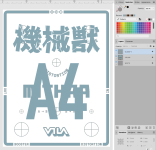
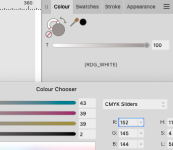
This is what I see when I open it with Affinity Designer:

The spot color name is ok (RDG_WHITE), but the CMYK values are not C25% M25% Y25% K25%, but C43% M39% Y39% K2%:

Screenshot.png

But that's all I see. There seems to be no other "problem", or at least nothing I can see at first glance. I have no idea if that's a problem or not. tbh. But I know it's not what they recommend, and it seems that their system is a bit finicky...
 
Back
Top