Tayda UV Printing

I noticed last week that all the 1590XX enclosures were out of stock, with a restock date of today (Sept 11)
Today, it seems like most of the 1590XX colors were restocked but a few of them still aren't? Hopefully it's just a matter of time.
 
They looked restocked, but are not really, I think when the bare enclosures will be available, all the colors will be also.

I sure hope so, need two of these and have been surprised last week when I could not order them.
 
Same thing happened with 1590BB2's when I was looking for one, they ran out and were restocked a bit late. I don't think it's anything more than that.

FWIW I emailed Hugo about the darker print issue I had, asking if it was maybe down to color profiles, but got a boilerplate answer back:

Good day, For UV printing CMYK is used which is real world colors and look much more different than what you see in your compter screen which is RGB.
For UV printing image printing results are usually unpredictable. If you want awesome looking results you have to go for vector graphics.
I'll have to consider whether I'll go for rasters or not in the future, turning some of the images I've used into vectors is really annoying and takes some fiddling (because they tend to be more detailed and not completely suitable for vectors), but if using rasters they come out much darker, that's annoying too.
 
FWIW the print went through once I fixed that spot color issue. It's a bit annoying since it got delayed by almost a week because of that, or at least a few days if I had fixed it instantly if the error message was more clear - but to be fair, the original mistake was by me when I messed up with that spot color. Now I'm just hoping they look ok since this is the first time I'm printing raster images.
How did you fix the issue? I seem to be having the same problem.
 
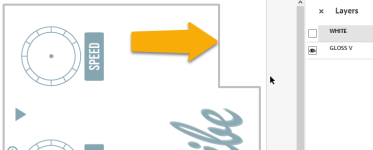
Hey everyone. I have tried to put this design together in inkscape and changed the colours to roland swatches in affinity. However there seems to be an issue with the border I made.

When I change the colour to rdg_white, it seems to make the whole area inside the border white and not just the edges. Does anyone know if this will be an issue with Tayda's UVprinting and if so how I might be able to make it so only the edges of the border are visible?
 

Attachments

It could be. In scribus I know there is the option to apply the swatch to the fill color and/or the border color. The same settings must exist in affinity.
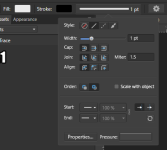
Mostly now, try to use only fill color in my designs and leave the border transparent.
 
That line appears in your white and gloss layer without swatch.
Just to be sure, you want the graphics to be in gloss only over a big white background ? No colors ?

1694522448232.png
 
That line appears in your white and gloss layer without swatch.
Just to be sure, you want the graphics to be in gloss only over a big white background ? No colors ?

View attachment 56309
The idea was to have the graphics in white and gloss (although I didn’t get to the gloss part due to this problem) over no background. Was hoping to print white/gloss onto a black enclosure.

Have I made a mistake?
 
How did you fix the issue? I seem to be having the same problem.
I think mine was a different issue. Basically I had a spot color included in something I rasterized. So now that even though it was a raster image, part of it was in a spot color, and it's not easy to color just part of a raster in Illustrator (if it's vectors, I could just switch that one piece to a different color).
 
I've tried the stroke/fill but it still seems to fill the entire section in white. My goal is to have no paint at all except for the border (and the other graphics of course).

I have attached what it looks like with the stroke/fill and without. What am I doing wrong here?

 

Attachments

To me, that looks like your white layer :
That would be all the zone in white.

I would suggest you apply the gloss swatch to the stroke in your GLOSS V layer,
than duplicate the gloss layer to create your white layer, rename that new layer WHITE, change the swatch for fill AND stroke to white swatch.
Make sure your WHITE is under your gloss.

1694524796629.png
 
I've tried the stroke/fill but it still seems to fill the entire section in white. My goal is to have no paint at all except for the border (and the other graphics of course).

I have attached what it looks like with the stroke/fill and without. What am I doing wrong here?
Do you select everything in your layer before applying the swatch ? In scribus that is what I need to do.
One of your design is really close, but the line have not the correct swatch applied.
I also thing some strokes are still not correct
1694525361559.png
obviously a bug typo ....... not knod .... kind of double layer
 
Any Illustrator guru’s willing to have a quick look at my first two designs and give them a quick check over before I send them to Tayda?

Drop me a PM with your email and I can send you the file.

Thanks in advance.

Phil
 
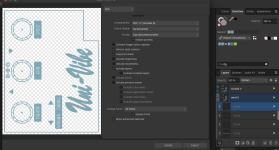
Hi again. I'm back and I think I have fixed the solid colour issue. However when I export my affinity file to PDF it seems to forget that I have selected rdg_white and rdg_gloss in the layers.

Can someone please check if these colours are present in the layers or at least show me how to check in affinity?

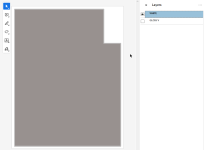
As you can see in the screenshot bleow i have "honor spot colors" selected and rdg_white is visible. But I can't see that in the pdf.
 

Attachments

Hi again. I'm back and I think I have fixed the solid colour issue. However when I export my affinity file to PDF it seems to forget that I have selected rdg_white and rdg_gloss in the layers.

Can someone please check if these colours are present in the layers or at least show me how to check in affinity?

As you can see in the screenshot bleow i have "honor spot colors" selected and rdg_white is visible. But I can't see that in the pdf.
RDG Gloss is applied correctly, but RDG White is not.

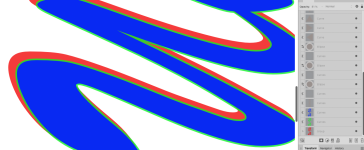
I've reviewed your design, and considering you're just using white (and varnish), you have way too many shapes for the "Univibe" logo. You have 3 different layers there, one on top of the other. It looks like it was made for colors, but was all colored white in this case. To illustrate what I'm saying, I've colored them in 3 different colors, red, green and blue. The last one is, for some reason, put into a group (that's not needed). The same is happening in the varnish layer. Maybe you want to simplify that?

Screenshot.png

@Nic has also pointed you some of these issues.

One word of advice: while printers have no problems with strokes, nitpicky printers like Tayda may have problems with them. I suggest you convert your strokes to fills. To do that, select elements with strokes (you can do that with the menu Select > Select Same > Stroke Color and convert the strokes to shapes with the menu Layer > Expand Stroke. In that way, all elements will be fills. Then you can select all with Select > Select Same > Fill Color, and change the elements all at once. This select tools is handy if you want to change the fill of the shapes all at once to apply the RDG White swatch.
 
Last edited:
Back
Top