Is there a template for making the "ring" markers around the POTS?Yes, white underlay, color and the top coats.
This pedal also had white undercoat, color layer and I used gloss-m on this. I wanted to see what each of the topcoats did. I like them all for different applications.
View attachment 9977
The julia only has the gloss on the siren so the background light blue is still matte.
View attachment 9979

You are using an out of date browser. It may not display this or other websites correctly.
You should upgrade or use an alternative browser.
You should upgrade or use an alternative browser.
Tayda UV Printing
- Thread starter dmnCrawler
- Start date

Danbieranowski
Well-known member
Hey everyone, here's what @dmnCrawler and I learned today after having a meeting and testing different exports and such:
1) Even if your PDF is created in Affinity Designer and can be read as separate layers by Affinity Designer, it WILL NOT be read as separate layers by Adobe Illustrator.
2) We don't know if Tayda is using Adobe Illustrator to open these files for printing, but if they are that means that separate White, Color, and Gloss layers may not be recognized when you get your Tayda print.
3) THE BEST SOLUTION FOR NOW if you only have Affinity Designer (like me) is to only print on light colored enclosures (ideally white), so you don't have to worry about the white layer in the export. In this case, you also can't have a gloss layer, as we aren't sure if it'll print over the top of your graphic and you'll end up with a big blob.
4) The RDG_White swatch that I uploaded to this board previously is still properly read as RDG_White in Illustrator, so at least we know that the color swatch does come across properly.
5) I am awaiting word from Tayda on better understanding how they recognize the white layer in an instance where the layers collapse, like what happens with Affinity Designer. If they are agreeable to just always printing RDG_White color first, then maybe we won't need a white layer at all, and they can just configure their UV printer to always print RDG_White first (if it exists in the document). That would allow us all to print on dark enclosures.
So as I said, for now, if you only have Affinity Designer, only use a Color layer and only print on light colored enclosures.
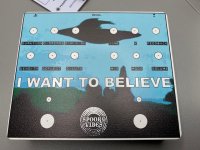
Here's an example of a full color print on a white enclosure:

1) Even if your PDF is created in Affinity Designer and can be read as separate layers by Affinity Designer, it WILL NOT be read as separate layers by Adobe Illustrator.
2) We don't know if Tayda is using Adobe Illustrator to open these files for printing, but if they are that means that separate White, Color, and Gloss layers may not be recognized when you get your Tayda print.
3) THE BEST SOLUTION FOR NOW if you only have Affinity Designer (like me) is to only print on light colored enclosures (ideally white), so you don't have to worry about the white layer in the export. In this case, you also can't have a gloss layer, as we aren't sure if it'll print over the top of your graphic and you'll end up with a big blob.
4) The RDG_White swatch that I uploaded to this board previously is still properly read as RDG_White in Illustrator, so at least we know that the color swatch does come across properly.
5) I am awaiting word from Tayda on better understanding how they recognize the white layer in an instance where the layers collapse, like what happens with Affinity Designer. If they are agreeable to just always printing RDG_White color first, then maybe we won't need a white layer at all, and they can just configure their UV printer to always print RDG_White first (if it exists in the document). That would allow us all to print on dark enclosures.
So as I said, for now, if you only have Affinity Designer, only use a Color layer and only print on light colored enclosures.
Here's an example of a full color print on a white enclosure:
caiofilipini
Well-known member
Thanks for all the hard work trying to figure this out, folks!

finebyfine
Well-known member
It's been a while since I last used Affinity but if it's easy to import Affinity files into Illustrator I'd be more than happy to export to pdfs for people from Illustrator.
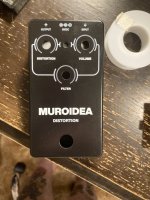
Also .... first tayda uv printed enclosure came today. Super impressed with the quality. For a matte black enclosure it's pretty glossy and a fingerprint magnet. I hit it with some satin clear coat after I took this photo and that helped tone it down without dulling the print. If that's all the work I need to do to be absolutely content with an amazing $10 printed enclosure I'm more than ok with it : ).
White layer with shades of gray printed on the color layer came out perfect but that doesn't come through great in this photo. With the white layer not being an additional cost I'd *really* recommend having it for your entire design to avoid any color surprises. There's no reason not to even with dark colors, and it'll make the result much closer to the cmyk previews you'd see on your screen. Unless you're looking at an overprint preview, the preview will always assume white paper (even with a black background).
Next enclosure I'll need to fix the spacing a hair but with hardware dropped in it wasn't noticeable.

edit:
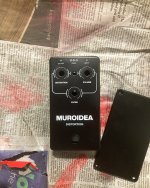
Here’s with the clear coat basically dry. Shades of gray come through better in this photo
Also .... first tayda uv printed enclosure came today. Super impressed with the quality. For a matte black enclosure it's pretty glossy and a fingerprint magnet. I hit it with some satin clear coat after I took this photo and that helped tone it down without dulling the print. If that's all the work I need to do to be absolutely content with an amazing $10 printed enclosure I'm more than ok with it : ).
White layer with shades of gray printed on the color layer came out perfect but that doesn't come through great in this photo. With the white layer not being an additional cost I'd *really* recommend having it for your entire design to avoid any color surprises. There's no reason not to even with dark colors, and it'll make the result much closer to the cmyk previews you'd see on your screen. Unless you're looking at an overprint preview, the preview will always assume white paper (even with a black background).
Next enclosure I'll need to fix the spacing a hair but with hardware dropped in it wasn't noticeable.
edit:
Here’s with the clear coat basically dry. Shades of gray come through better in this photo
Last edited:

cooder
Well-known member
Awesome thanks for all that figuring out and keeping us updated! Much appreciated!
The example enclosure up there looks great again, so is that a hpeg or png graphic picture and does it need to be vectorized or how does that work? The white text on there is just blank space so that the white of enclosure comes through, right? How does the labelling work, is that the blue picture and then black labels over it or does the blue underneath need to be cut out?
Sorry for all the nooby questions... graphics design for this printing process is new to me, so far I have only used laser printer on waterslide back home.
The example enclosure up there looks great again, so is that a hpeg or png graphic picture and does it need to be vectorized or how does that work? The white text on there is just blank space so that the white of enclosure comes through, right? How does the labelling work, is that the blue picture and then black labels over it or does the blue underneath need to be cut out?
Sorry for all the nooby questions... graphics design for this printing process is new to me, so far I have only used laser printer on waterslide back home.

dmnCrawler
Well-known member
Awesome thanks for all that figuring out and keeping us updated! Much appreciated!
The example enclosure up there looks great again, so is that a hpeg or png graphic picture and does it need to be vectorized or how does that work? The white text on there is just blank space so that the white of enclosure comes through, right? How does the labelling work, is that the blue picture and then black labels over it or does the blue underneath need to be cut out?
Sorry for all the nooby questions... graphics design for this printing process is new to me, so far I have only used laser printer on waterslide back home.
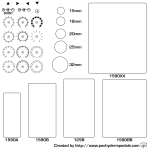
I created an SVG you can use to create the surrounds. I added a couple of other graphics that may be useful. All can be imported to Affinity, Inkscape or Illustrator. I hope these work for you. (SVG in the attached zip file)
Attachments

SYLV9ST9R
Well-known member
Thanks, those are great.I created an SVG you can use to create the surrounds. I added a couple of other graphics that may be useful. All can be imported to Affinity, Inkscape or Illustrator. I hope these work for you. (SVG in the attached zip file)
View attachment 10151
For the pot "rings" I would advise drilling your holes. Most of my UV prints were well-centered, but I recently got one that was a bit offset, so for pre-drilled enclosure, it might look a bit off (if you're unlucky).
Also, I already posted this somewhere here, but I find it great when designing. It features knobs, hardware, and use it all the time for mock-up, measurements, etc.
Effects Pedal Builder's Vector Art Pack

fig
Village Idiot
Much appreciated!I created an SVG you can use to create the surrounds. I added a couple of other graphics that may be useful. All can be imported to Affinity, Inkscape or Illustrator. I hope these work for you. (SVG in the attached zip file)
View attachment 10151

Danbieranowski
Well-known member
It was @dmnCrawler 's AI, so I'll let him answer that. I think it was current though bc he mentioned he had a subscription.The layer stack is preserved if you export as SVG, although they're all nested inside a parent "Layer 1" .... I wonder if that would be acceptable?
What version of Illustrator did you guys use for the tests?
That's very interesting about the SVG preserving the layer stack inside a sort of 'master layer'. I'm waiting on a response from I'm assuming Hugo over there to try to better understand the process since they misprinted something for me anyways. I'll ask that question as well.
Danbieranowski
Well-known member
For a better matte black, go with the matte black sand. It's got a more "pro" look and feel to it anyways, and doesn't show the fingerprints quite like the more smooth texture matte black.It's been a while since I last used Affinity but if it's easy to import Affinity files into Illustrator I'd be more than happy to export to pdfs for people from Illustrator.
Also .... first tayda uv printed enclosure came today. Super impressed with the quality. For a matte black enclosure it's pretty glossy and a fingerprint magnet. I hit it with some satin clear coat after I took this photo and that helped tone it down without dulling the print. If that's all the work I need to do to be absolutely content with an amazing $10 printed enclosure I'm more than ok with it : ).
White layer with shades of gray printed on the color layer came out perfect but that doesn't come through great in this photo. With the white layer not being an additional cost I'd *really* recommend having it for your entire design to avoid any color surprises. There's no reason not to even with dark colors, and it'll make the result much closer to the cmyk previews you'd see on your screen. Unless you're looking at an overprint preview, the preview will always assume white paper (even with a black background).
Next enclosure I'll need to fix the spacing a hair but with hardware dropped in it wasn't noticeable.
edit:
Here’s with the clear coat basically dry. Shades of gray come through better in this photo
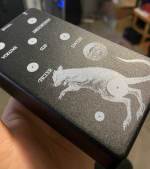
Here's an example:
Danbieranowski
Well-known member
The picture is a vectorized SVG of a JPEG I downloaded of the old X Files "I WANT TO BELIEVE" poster. You can use a website like https://www.autotracer.org/ to create this SVG for you from JPEG, PDF, etc...Awesome thanks for all that figuring out and keeping us updated! Much appreciated!
The example enclosure up there looks great again, so is that a hpeg or png graphic picture and does it need to be vectorized or how does that work? The white text on there is just blank space so that the white of enclosure comes through, right? How does the labelling work, is that the blue picture and then black labels over it or does the blue underneath need to be cut out?
Sorry for all the nooby questions... graphics design for this printing process is new to me, so far I have only used laser printer on waterslide back home.
Their printer reads the white text as something that just shouldn't be printed. So if you add white text anywhere, the printer just won't print anything there. That's why you'll have the best results using a white enclosure. It'll match your mockup the best. Although you can apply a background color of your choice in Affinity to try to get an idea of what something might look like on a different color as well.
For the labeling, I did not cut out the colors beneath the labels. I'm guessing they print black last so it ends up on top, although that's just a guess. Once you've labeled everything you have to go the Layer>Convert to Curves for all of your text. This converts all the text to images so if they don't have your font it won't cause any issues.
Nooby questions are no problem. That's what this thread is here for!
dmnCrawler
Well-known member
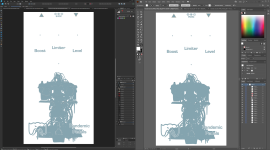
I just installed the latest version from creative cloud. This is the side by side of the same pdf exported from Affinity Desiner.The layer stack is preserved if you export as SVG, although they're all nested inside a parent "Layer 1" .... I wonder if that would be acceptable?
What version of Illustrator did you guys use for the tests?
Danbieranowski
Well-known member
Yeah, it's really strange. @dmnCrawler created the same layered PDF in both AI and Affinity Designer... literally exactly the same... and Designer was able to open both PDFs and recognize the layers. But AI could only open it's own generated PDF preserving the layers. The Designer PDF lost its layers when opened in AI. I'm not sure if this is a Designer limitation, or an AI limitation.It's odd because the layers are exported to PDF, but the layer hierarchy is not.... (well... it is, but not according to Illustrator)
Exporting to PSD preserves the layer hierarchy as well, but the graphics are rasterized, so that's no good.
dmnCrawler
Well-known member
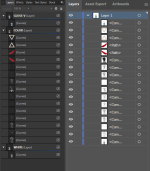
Easier to see the layers:

finebyfine
Well-known member
Is the black sand rough to the touch? I love how it looks but hate that sensationFor a better matte black, go with the matte black sand.
dmnCrawler
Well-known member
I also notice that the Illustrator PDF (6683K) is 3 times the size of the Affinity Designer one (2737K). Edit: Well 2.44 times.
Danbieranowski
Well-known member
Yeah it does have that kinda smooth sandy feel. I LOVE that look/feel though, so I'll gladly take them all.Is the black sand rough to the touch? I love how it looks but hate that sensation

dmnCrawler
Well-known member
I love the black sand. I think that and the copper hammer are my favorites.Is the black sand rough to the touch? I love how it looks but hate that sensation