Tayda UV Printing

Can anyone tell me the CMYK values for RDG_GLOSS and RDG_WHITE? Having trouble importing the Versaworks color palette so trying to make spot colors. Though I'm not entirely sure it will matter...

Edit: I believe they are 50/25/25/0 for RDG_GLOSS and 30/10/10/50 for RDG_WHITE
I think somebody mentioned earlier that they have to be "spot colour" type not just CMYK combination of colours, so this might not work.
 
Couldn't get the swatch to import to Scribus but it allows you to make spot colors. Hoping it works but low expectations lol.
 
I was able to pull the swatch posted on tayda’s site into scribus from the edit==>colors menu. But I remember it didn’t work, and then it did and I’m not sure why.

Try closing all files, so you are just looking at scribus with nothing open. Then edit colors and import the swatch. Then open your artwork file and go to edit colors again. There’s something strange where scribus won’t do some things if the file is already open.

I created a new thread to see if someone with adobe can check my file. If it works, I’ll write up the workflow I used between Inkscape and Scribus. “Tayda printing for cheap bastards”
 
I have been posting this over at MBP, but thought it might be good here too as the question came up for how to work with inkscape and Affinity designer to get pdf that work with Tayda.

I'll try to start writing some up of my workflow using inkscape to do the actual design and then do the rendering to pdf in Affinity designer.
First of all, for inkscape to find your way around the program or find out about how to do certain fancy designs, shapes and stuff I found this channel amazeballs:


I start in inkscape by having the design template from Tayda loaded up for the right size, I usually do 125B and I'll try to upload a basic one I start with here, feel free to grab it as a starting point and mess around (see below posts).

Note that I use three layers, I called them emboss / color / white. You'll find that in the layers menu.
To start with I only work on the colors layer, so make sure there is nothing on the emboss or white layers and hide those layers, like this:
ncq9DqZ.jpg


Then I do my design stuff until I have all my font, labelling, design stuff on there, still only in color layer.

When I'm happy with how it looks, then important steps:

1) Highlight everything, un-group everything and you will have to do that several times so that all sub groups are un-grouped.
(did I mention press save your work all the time, the program or computer might crash if the design is complicated... saving is good, ask me how I know.)

2) Then go to Path menu (top bar), highlight everything on color layer and hit 'object to path' several times until everything is converted to path. At this stage the font of labels is not a text anymore, it is an vectorized object.[/li][/list]

3) Then go to Path menu (top bar), highlight everything on color layer and hit 'stroke to path' several times until it should also make sure that any strokes are vectorized objects.

4) To make sure do the un-group everything step above again. You can't overdo those steps to make extra sure evrything is un-grouped and converted to path/object aka vectorized.


Save it.

Then highlight everything, hit ctrl+D, which duplicates everything, so now you have two identical designs vectorized on one and the same (color) layer.
Right click mouse, drop down comes and select 'move to layer'. Select layer 'white' and what you have just duplicate will swish over to that layer. There is still the original artwork on color layer.

Repeat:
highlight everything, hit ctrl+D, which duplicates everything, so now you have two identical designs vectorized on one and the same (color) layer.
Right click mouse, drop down comes and select 'move to layer'. Select layer 'emboss' and what you have just duplicate will swish over to that layer. There is still the original artwork on color layer.

So now there should be three identical artworks on each layer emboss / color / white.

You can check that by hiding two of the layers and see that the artwork is on the active layer. Check that for each layer, and then activate each layer to be visible.
Everything should be vectorized.

Don't add or change on artwork any more at this stage. If you find you want to change something you will have to first delete everything on white / emboss layer, work on color layer until you have what you want, then repeat all the steps above of un-grouping, vectorizing, duplicating into layers.
Don't forget to save... ;)

That's what I do in inkscape, then I open the file in Affinity Designer.

When I open the file in Affinity I first check under File / Document setup two important things:
that the document dimensions in mm are correct as per Tayda requirements, should be this:
wzI3gfT.jpg


and then select under color CMYK, really important, like this:
LJJaW5H.jpg


check that all layers are present and active, like this:
x3Fh379.jpg


Then really important: upload the Roland swatches from Tayda site for RGD white and RGD gloss (I called it in my layers emboss because they offered the option in the past instead of gloss, but that doesn't matter same thing).


Activate the RGD emboss (uncheck white and color layer) layer highlight all and click on the RGD gloss Roland swatch to give it that specific color. It will appear greyish, but that's fine, don't panic.

Activate the RGD white (uncheck emboss and color layer) layer highlight all and click on the RGD white Roland swatch to give it that specific color. It will appear greyish, but that's fine, don't panic.

Activate all three layers, it will still look greyish, don't panic. Check and uncheck each layer to see that you haven't mixed things up. Ask me how I know. If all apeears good, have all three layers active and (tada):

Let's export is to print ready pdf.


I go on File / Export and this comes up, I chose these setting to export to pdf:
1s9Lc5c.jpg


Save it as pdf.


Open the file as pdf in Acrobat Reader (or whatever you use I spose), and it should look like this:

c8A8RVh.jpg


Note I have opened the layer icon on left bar which shows me three separate layer RGD emboss / color / white. It all looks grey, don't panic, because the RGD emboss is top layer.
If you uncheck RBD emboss in Acrobat Reader view you should see the color layer, if you uncheck that as well you should see the also greyish looking white layer.

BENFTs1.jpg


Curiously I never had the problem going with this procedure that other people reported, that the layers collapsed into one layer only in final pdf.
This is just how it works for me and the pdf files I sent to Tayda have come back fine unless I goofed up, which of course happened, but I can't blame that on the software, that was me goofing.

Hope this works for you as well!

 
Here's a link to the file as I worked with it in inkscape, design so far only on color layer, white and emboss layer empty.
Feel free to use this and work with it. This is 125B size.
https://drive.google.com/file/d/1xJSG2EqaVe2A0w_xN-w_asEq2AMce3oE/view?usp=sharing

Here's link to file as I worked with it in Affinity, design on all three layers, Roland swatches on the white and emboss layer.
You will need Affinity designer to open this I guess:
https://drive.google.com/file/d/1xJSG2EqaVe2A0w_xN-w_asEq2AMce3oE/view?usp=sharing

And link to exported pdf file (exported from Affinty) which should show with three laers, it really should, it does for me... ;)
https://drive.google.com/file/d/1CLnGyXARAByfin6dCc1um0LNQ6WevyxV/view?usp=sharing
 
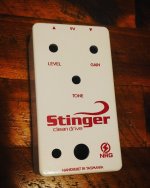
I was a little annoyed with some minor flaws in my last batch of pedals from Tayda (paint bubble, discolouration on a few lines) and then there was an additional print error that was my fault which means I now have two dud enclosures.

Decided to give them another go before looking for alternatives and really happy with what I got back this time. So far it's just the one batch that I've been unhappy with.

This one's going to have a Six String Stinger board in it.
 

Attachments

  • IMG_20220218_210312_819.jpg
    IMG_20220218_210312_819.jpg
    1 MB · Views: 48
Is that just regular gloss on the sand black one, or did they bring back the emboss option?
White + Gloss on black sand.

I like that neon pink and green on the Nintendo-themed chorus. Nice color choices.

Congrats on a successful first print!
My 6 year old son helped me with that one. He came up with our band name "Dirty Pink" when he was 4. I have no idea where he got it but it stuck and I love it.
 
I have been posting this over at MBP, but thought it might be good here too as the question came up for how to work with inkscape and Affinity designer to get pdf that work with Tayda.

I'll try to start writing some up of my workflow using inkscape to do the actual design and then do the rendering to pdf in Affinity designer.
First of all, for inkscape to find your way around the program or find out about how to do certain fancy designs, shapes and stuff I found this channel amazeballs:


I start in inkscape by having the design template from Tayda loaded up for the right size, I usually do 125B and I'll try to upload a basic one I start with here, feel free to grab it as a starting point and mess around (see below posts).

Note that I use three layers, I called them emboss / color / white. You'll find that in the layers menu.
To start with I only work on the colors layer, so make sure there is nothing on the emboss or white layers and hide those layers, like this:
ncq9DqZ.jpg


Then I do my design stuff until I have all my font, labelling, design stuff on there, still only in color layer.

When I'm happy with how it looks, then important steps:

1) Highlight everything, un-group everything and you will have to do that several times so that all sub groups are un-grouped.
(did I mention press save your work all the time, the program or computer might crash if the design is complicated... saving is good, ask me how I know.)

2) Then go to Path menu (top bar), highlight everything on color layer and hit 'object to path' several times until everything is converted to path. At this stage the font of labels is not a text anymore, it is an vectorized object.[/li][/list]

3) Then go to Path menu (top bar), highlight everything on color layer and hit 'stroke to path' several times until it should also make sure that any strokes are vectorized objects.

4) To make sure do the un-group everything step above again. You can't overdo those steps to make extra sure evrything is un-grouped and converted to path/object aka vectorized.


Save it.

Then highlight everything, hit ctrl+D, which duplicates everything, so now you have two identical designs vectorized on one and the same (color) layer.
Right click mouse, drop down comes and select 'move to layer'. Select layer 'white' and what you have just duplicate will swish over to that layer. There is still the original artwork on color layer.

Repeat:
highlight everything, hit ctrl+D, which duplicates everything, so now you have two identical designs vectorized on one and the same (color) layer.
Right click mouse, drop down comes and select 'move to layer'. Select layer 'emboss' and what you have just duplicate will swish over to that layer. There is still the original artwork on color layer.

So now there should be three identical artworks on each layer emboss / color / white.

You can check that by hiding two of the layers and see that the artwork is on the active layer. Check that for each layer, and then activate each layer to be visible.
Everything should be vectorized.

Don't add or change on artwork any more at this stage. If you find you want to change something you will have to first delete everything on white / emboss layer, work on color layer until you have what you want, then repeat all the steps above of un-grouping, vectorizing, duplicating into layers.
Don't forget to save... ;)

That's what I do in inkscape, then I open the file in Affinity Designer.

When I open the file in Affinity I first check under File / Document setup two important things:
that the document dimensions in mm are correct as per Tayda requirements, should be this:
wzI3gfT.jpg


and then select under color CMYK, really important, like this:
LJJaW5H.jpg


check that all layers are present and active, like this:
x3Fh379.jpg


Then really important: upload the Roland swatches from Tayda site for RGD white and RGD gloss (I called it in my layers emboss because they offered the option in the past instead of gloss, but that doesn't matter same thing).


Activate the RGD emboss (uncheck white and color layer) layer highlight all and click on the RGD gloss Roland swatch to give it that specific color. It will appear greyish, but that's fine, don't panic.

Activate the RGD white (uncheck emboss and color layer) layer highlight all and click on the RGD white Roland swatch to give it that specific color. It will appear greyish, but that's fine, don't panic.

Activate all three layers, it will still look greyish, don't panic. Check and uncheck each layer to see that you haven't mixed things up. Ask me how I know. If all apeears good, have all three layers active and (tada):

Let's export is to print ready pdf.


I go on File / Export and this comes up, I chose these setting to export to pdf:
1s9Lc5c.jpg


Save it as pdf.


Open the file as pdf in Acrobat Reader (or whatever you use I spose), and it should look like this:

c8A8RVh.jpg


Note I have opened the layer icon on left bar which shows me three separate layer RGD emboss / color / white. It all looks grey, don't panic, because the RGD emboss is top layer.
If you uncheck RBD emboss in Acrobat Reader view you should see the color layer, if you uncheck that as well you should see the also greyish looking white layer.

BENFTs1.jpg


Curiously I never had the problem going with this procedure that other people reported, that the layers collapsed into one layer only in final pdf.
This is just how it works for me and the pdf files I sent to Tayda have come back fine unless I goofed up, which of course happened, but I can't blame that on the software, that was me goofing.

Hope this works for you as well!
Hello!
I followed the exact same workflow and I still got the alert messages from Tayda :(
I have printed dozens of enclosures with no issue but this time was different....
I did 8 designs some got the alert some didn't... :unsure:
If someone could just check the pdf to see if there is something obvious I'm missing I'd be grateful!
 

Attachments

@Sm4sh your pdf looks fine to me the layers are there. Did you check that the artboard size you used was exactly what they want, was there any objects outside of artboard, is everything vectorized and ungrouped? Did you use CMYK colours in Affinity instaed of the default RGB?
Best do that vectorizing (converting objects to path and converting stroke to path) and ungrouping several times to get everything. Do that in inkscape before you go to Affinity.
That's all I can think of for now.
 
@Sm4sh your pdf looks fine to me the layers are there. Did you check that the artboard size you used was exactly what they want, was there any objects outside of artboard, is everything vectorized and ungrouped? Did you use CMYK colours in Affinity instaed of the default RGB?
Best do that vectorizing (converting objects to path and converting stroke to path) and ungrouping several times to get everything. Do that in inkscape before you go to Affinity.
That's all I can think of for now.
Firstly, thank you to take the time to check my pdf! Appreciate it!
Yeah, I checked all that.
I even do a “union” command to avoid things to get separated, so yeah everything should be ungrouped and vectorized…. :unsure:
I got 3 or 4 alerts “you don’t have anything on the white layer”
A mystery to me…
 
Is there a trick to converting to a vector in illustrator or does it just depend on your base image? I'm seeing a lot of really good looking pedals in this thread and I'm struggling to get anything usable out of this picture:

test.jpg

Would I be better off trying to redraw it in illustrator?
 
Is there a trick to converting to a vector in illustrator or does it just depend on your base image? I'm seeing a lot of really good looking pedals in this thread and I'm struggling to get anything usable out of this picture:

View attachment 23543

Would I be better off trying to redraw it in illustrator?

That video seems super helpful and actually explains things pretty clearly. I had a hard time extracting the image of Ozzy on Volume 4 for a pedal through inkscape. This video convinced me to switch to illustrator along with the video tutorial by @jeffwhitfield.
 
I recently did a 4 parts video tutorial on Madbean about the uv print process and my general work flow with things I have learned along the way. I took inspiration for some people on here and shared with the people over there who wanted to learn the process. The videos are broken into 4 parts all under 15 mins with each chapter addressing a certain part of the process. If your interested in seeing them I can post a link to the YouTube videos.
I'm interested, was just starting to look into the process....
 
I recently did a 4 parts video tutorial on Madbean about the uv print process and my general work flow with things I have learned along the way. I took inspiration for some people on here and shared with the people over there who wanted to learn the process. The videos are broken into 4 parts all under 15 mins with each chapter addressing a certain part of the process. If your interested in seeing them I can post a link to the YouTube videos.
Even though I have the general process of getting the files worked out now, I’d love to see the videos just to see your process and workflow since your artwork is always on point!
 
Even though I have the general process of getting the files worked out now, I’d love to see the videos just to see your process and workflow since your artwork is always on point!
Here's what I understood so far...

- Vectoral files only
- CMYK not RGB
- 3 layers, white, color and gloss
- Preset colors (shade of gray) for white and gloss

The part I don't understand is what is the Gloss layer for ? Is that if you want matt colors ? You set a negative layer for the gloss part ?
 
Back
Top