Tayda UV Printing

Quick question: (apologies if this has been asked and answered already):

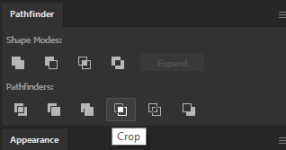
In Illustrator, if you have overlapping elements with different colors do you need to merge them, or cut them out of the lower layer for printing? It seems like yes from what I read on the Tayda site but I'm actually not sure (I'm so rusty in Illustrator it's sad).

More specifically, here's my design, which will be printed on a white enclosure. Do I need to cut out or merge the overlapping text/gfx from the blue triangle shape below so they don't overlap, color-wise (all the text has been vectored)? Does that include the stroke around the triangle? Is this a stupid question? I'm a UV print n00b.

View attachment 66418
I merge mine, I'm not sure if it's a 100% requirement but it doesn't really hurt. If you just select all of those items and use the "Merge" tool in Illustrator I think it usually works just fine, at least with stuff like that.

I also keep a "pedalname.ai" and then "pedalname final.ai" where I do all of the merging, turning text to outlines and getting rid of extra stuff, so if I notice I need to fix something I don't have to recreate it from scratch, I can just load the previous file, fix the issue and repeat the final steps.

A question for others, has anyone else had prints appear darker than they expect? It happened to me again on the latest batch and it's annoying. They still look ok, and especially in the sunlight, but since the day length is currently less than 6½ hours, they do tend to look a bit too dark for my taste. I wonder if I should start just increasing brightness or something as one of my steps.
 
I merge mine, I'm not sure if it's a 100% requirement but it doesn't really hurt. If you just select all of those items and use the "Merge" tool in Illustrator I think it usually works just fine, at least with stuff like that.

I also keep a "pedalname.ai" and then "pedalname final.ai" where I do all of the merging, turning text to outlines and getting rid of extra stuff, so if I notice I need to fix something I don't have to recreate it from scratch, I can just load the previous file, fix the issue and repeat the final steps.

A question for others, has anyone else had prints appear darker than they expect? It happened to me again on the latest batch and it's annoying. They still look ok, and especially in the sunlight, but since the day length is currently less than 6½ hours, they do tend to look a bit too dark for my taste. I wonder if I should start just increasing brightness or something as one of my steps.
I've had that happen, too. I've been able to fix it by picking a slightly lighter shade of the color. I'd note that if you really want the color to pop, especially if you're using a darker enclosure, (1) splurge for the print the white layer twice option, and (2) one of the matte/gloss varnish options.
 
Yep, I just do Merge. It's pretty close to the last step, for reasons discussed above.

In Bean's case, with black text over a lighter color, it possibly won't matter, because the higher layer darkens the lower layer. But if there's a chance of color blending a little while it's printing, the text could possibly look a little faded compared to having only black on the substrate.

I like Merge because it's a single step that's easy to undo back to. Likewise, converting text to outlines, and also outlining strokes, can be single (earlier) steps with everything selected, saving some undo steps. I guess I do a lot of undoing.
 
I've had that happen, too. I've been able to fix it by picking a slightly lighter shade of the color. I'd note that if you really want the color to pop, especially if you're using a darker enclosure, (1) splurge for the print the white layer twice option, and (2) one of the matte/gloss varnish options.
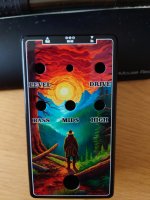
The thing is - I do splurge on both the double white layer and gloss varnish. Here's what the end product looks like:
DSC_3001.JPG
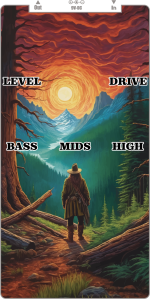
And here's an export straight out of AI (with the gloss layer disabled):
Timbre_man_export.png
And here's using snipping tool to capture what it looks like on my screen:
asdasdasd.png
It's almost like the export has saturation at default, the snipping tool one has saturation +15, and the actual print has saturation +30 applied. It's not horrible, but it's not quite what I wanted. Is this down to just CMYK and RGB differences and how it's hard to estimate what a print comes out as? Or should I just start applying saturation -15 or something before I send out the pdf files?

If it was down to CMYK and RGB differences, I would think it would be the other way around, since AFAIK the CMYK black is not as black as RGB black (I could easily be wrong, I just read that somewhere)?
 
  • Like
Reactions: Nic
Ah, that is worse than what I’ve experienced in terms of the difference between what I see on the screen in Illustrator and what ends up getting printed. Maybe it is due to CMYK/RGB differences? I haven’t printed anything that was converted from an RGB image, though. I’m interested in seeing if anyone can resolve this, though.
 
CMYK approximated on the everyday monitor is certainly a part of the disparity.

It's likely been discussed/outlined elsewhere, and I don't want to sound condescending but RGB is additive color, while CMYK is subtractive: in RGB space, you add three values until you get white (it gets brighter); with CMY, you add until you get black (it gets darker); the K (key) black comes in because of ink saturation limits, color dynamism and the consistency of balck tones (I won't diverte here). These limitations and numbers were mostly meant for paper stocks. E.g. a good paper stock might be able to take upwards 300% saturation, while newsprint can only take 240-260%, but I digress

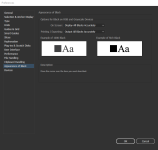
One thing (also might be repeating again) is to make sure you set your "Appearance of Black" preference in Illustrator to Accurate

1705849125533.png

Especially the output, otherwise you're going to get what's called Rich Black, which is CMY all combined.

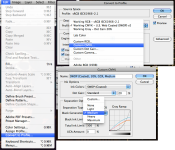
As far as importing images, here's one thing you could try. You can take your desired image and apply what is called a Print Profile to it. What this does is sort of a pre-separation of the colors into CYMK which is more robust than just a Image > Color Mode > CMYK

MENUS.png

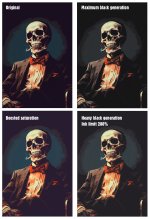
So here we have lots of options, but we're going to focus on the Black Generation. If we select Maximum, you'll get a super flat/desaturated looking. So we can do a bit of preemptive saturation boosting. Then we can go back, and dial back the generation to medium or Heavy. I chose Heavy. Disregard the warnings you might get. We're not going to be printing this raster image, but a vectorized version.

sasturation-crap.jpg

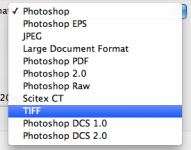
Now when we take this image into Illustrator (set up new to be CMYK) we'll have a better time of things. JUST BE SURE to save in a format that supports CMYK and will save the color profile we've built. I like TIFF, but I'm weird.

format.png
save profile.png
 
Last edited:
One other thing I want to add:

I'm weird and like to use as few colors as possible, and I also like to go in and tweak CMYK values for each of the colors. Easiest way for me is getting all the colors in my art and editing them:

Select all your art vectors, go to the Swatches palette, and under the top right menu choose "Add selected colors", and that will put ALL of the selected stuff gets put into your swatches, but the best part, is that they become GLOBAL swatches. That basically means you can edit the color from the swatches and it applies everywhere that swatch is applied!

I'm on mobile, otherwise I'd put screenshots into this…

But the bottom line is that I like to tweak the numbers to even further tune in the colors to have a low ink saturation as works.
 
This has likely been repeated in this thread/elsewhere, but it's sort of my checklist of things.

So this element is a stroke effect. It needs to be converted to fills
View attachment 66419
So I'll go to this menu item
View attachment 66420 and you should see: View attachment 66421

if you don't, go to expand again, or expand appearance might be an option, then expand again until it's all plain paths.

Alternatively, with everything selected in your art layer, you could go to this menu item: Flatten transparency
View attachment 66422

and then set these options (the most important is the 'raster vector balance' needs to be 100% vectors, just in case)
View attachment 66423

Which should outline everything:
View attachment 66424

if in doubt, go hit control-y (or command-y) to enter outline mode: outlined items will look like unfilled lines, whereas live text (not-outlined) and strokes will appear as solid and thin lines, respectively. In this example, left is NOT outlined, right IS outlined. If that makes any sense.

View attachment 66426

You = my hero. Thanks, I will dig into this. I'm super embarrassed to admit I took an entire college class on Illustrator, but in my defense it was nearly 20 years ago!
 
Select all your art vectors, go to the Swatches palette, and under the top right menu choose "Add selected colors", and that will put ALL of the selected stuff gets put into your swatches, but the best part, is that they become GLOBAL swatches. That basically means you can edit the color from the swatches and it applies everywhere that swatch is applied!

Doing this also makes (re)coloring from a book really easy. I don't know if used Pantone Bridge books (these show CMYK approximations of Pantone Spot Colors side by side) are cheap enough to be worthwhile to non graphic designers, but if not I'm sure there's other cheaper CMYK color guides that would be useful. Color proofing is a bitch an a half and color books make it a little easier.
 
CMYK color guides that would be useful. Color proofing is a bitch an a half and color books make it a little easier.
Oh totally. Huge pain, especially if the client is super …particular, but doesn't want to shell out for a spot plate in their printed material.

I have a cheat I've used for a long time: requires an older version of photoshop where Pantone didn't charge you extra for the privilege (or if you have subbed to them, should work). You might already know this one.

So you open an image in pShop and go to the Color Picker. Pick a color with the eyedropper, then click 'Color Libraries' button and then select the book/library of spot colors—it'll automatically navigate to the Pantone that most closely matches the CMYK or approximated LAB values automatically. But that's for matching digital, not from a printed sample. Still, you can swap books and it'll find the closest one. Saved me loads of time in the past.
 
@jessenator oh wow that’s handy. there used to be a tool on pantone’s website that did this (there might still be, but as just a freelancer with a pantone book in good enough shape I have no reason to sub). Time to see if CC has an old enough version of photoshop for it

You might also like this if you’re using a newer version of Illustrator: https://github.com/Autocrit/Pantone-color-libraries

Edit: I only use PS a few times a year, but with these swatches imported into the current versions could it do the same thing?
 
Last edited:
with these swatches imported into the current versions could it do the same thing?
Could work. I'll admit, the last time I looked at a book for a client was probably 2019, and they've expanded quite a bit since. I think we were only using Solid Coated, Uncoated, metallics, and maybe CMYK coated & uncoated. So other than needing new chip books every so often, we didn't do much beyond that. I don't see why not, though. I could test it on my work subscription sometime this week.
 
@finebyfine looks like it do!

Illustrator
3RsVOZql.png
tUv7E3Xl.png


Photoshop
yMG9OoAl.png
 
Hey guys,
I build a tube screamer some time ago.
Has anybody a UV Print in Tube Screamer style for Tayda?
I don't have Adobe Illustrator and don't be able to do that.
I really appreciate your help!
best regards,
Till
 
Back
Top