Tayda UV Printing

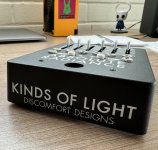
Let us know how it turns out. I had an issue like that once and Hugo got grumpy and told me he could only cancel the order and refund my money and I had to place the order again. Another time, I had a special request after I submitted the print job (mixing the matte and gloss layer) and he happily did it at no charge. Earthquakes are easier to predict than Hugo.

M
Bought 2 UV glasses and switches, messaged tayda help desk and email help@taydaelectronics and Hugo@taydaelectronics with both orders numbers and explanation.
Printed last night and DHL now has it.
No communication back but it got done. That $4 cost me another 20 but whatever. It's for a Xmas gift and I gotta get it done.
Also, I think, not sure, you need to buy a gloss for each side. The site doesn't specify but the "system" generated 2 errors of missing gloss purchase so I assumed that meant one purchased for each side.
 
Also, I think, not sure, you need to buy a gloss for each side. The site doesn't specify but the "system" generated 2 errors of missing gloss purchase so I assumed that meant one purchased for each side.
That's probably my fault for not clarifying when I sent you the print files 😩

I messaged Hugo to clarify along with a couple of other clarifiers. Ah beans, I think that reply is in the thread I started on mbp forum. Yup it is.

A PDF of multi layered art per side; a uv print item per side; and uv gloss item per side. Same would go for the extra hit of white. Sorry, man, but super glad you got it sorted!
 
I might just bite the bullet and do it. My design is rather high contrast anyway, so there will be plenty of "black" from the enclosure, should there be a problem. I'm fairly confident about it. Others have mentioned RDG_GLOSS can be metered like I'm wanting to do with the white, and my smidge of prepress experience is telling me TINT is the way to go—is is what we do with Pantones after all. It'll be an adventure 😁
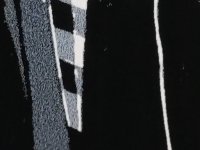
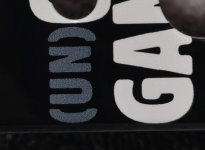
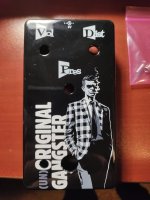
I can now confirm that adjusting the Tint percentage of the RDG_WHITE does produce a kind of 'grayscale ' on a dark enclosure. YMMV.

1000006305.jpg

1000006308.jpg
1000006301.jpg
In the morning I'll upload a more detailed breakdown of what percentages I used in my art file for reference.

Also bear in mind that the contrast will get thinner as you go lighter with the enclosure color.
 
In the morning I'll upload a more detailed breakdown of what percentages I used in my art file for reference.

Alright, so how I did this was pretty straightforward with Illustrator. It's how I do, but you might have another preference. I don't have affinity designer, sadly, just an ancient-ass version of CS.

I had my art auto-trace vectorized as grayscale, so everything (at least if you start with a file in CMYK) was a percentage of K (black). Then I go each tone one by one and select every piece of geometry that had that color. And then used the Pathfinder tool to unite them into a single object (well, group at least…) Then I named those groups based on the amount of black ink:

8yotNoR.png


0ec7bge.png


I then took those numbers out of 100, and made them the corresponding Tint percentage of the RDG_WHITE spot swatch color. BUT I did do some refining, because it wasn't quite what I wanted. I used a QaD trick to simulate what it would look like by taking a screenshot of the RDG_WHITE artwork, popped it into Photoshop, inverted that, and used the levels to set the white point of the image to what I knew was going to be the "whitest" part of the design:

hSzpTS8.png


After some adjustments, I had it where I wanted. Of course, RGB =/= CMYK, even with grayscale, and a given print will typically be darker than what you think.

Here's an incomplete breakdown of the tint percentages used. AS ALWAYS YMMV.

dMHcurBh.png
YAWgVbwh.jpg


I noticed the dithering on the white ink percentage is not that dissimilar from the classic Photoshop diffusion dither pattern used for monochrome image conversion (pictured):

RWXfqBo.png


And of course, per the standard file prep, there should be NOTHING except RDG_WHITE in your designs. I put a FFFFFF white background so it wouldn't look so awful.
 
Alright, so how I did this was pretty straightforward with Illustrator. It's how I do, but you might have another preference. I don't have affinity designer, sadly, just an ancient-ass version of CS.

I had my art auto-trace vectorized as grayscale, so everything (at least if you start with a file in CMYK) was a percentage of K (black). Then I go each tone one by one and select every piece of geometry that had that color. And then used the Pathfinder tool to unite them into a single object (well, group at least…) Then I named those groups based on the amount of black ink:

8yotNoR.png


0ec7bge.png


I then took those numbers out of 100, and made them the corresponding Tint percentage of the RDG_WHITE spot swatch color. BUT I did do some refining, because it wasn't quite what I wanted. I used a QaD trick to simulate what it would look like by taking a screenshot of the RDG_WHITE artwork, popped it into Photoshop, inverted that, and used the levels to set the white point of the image to what I knew was going to be the "whitest" part of the design:

hSzpTS8.png


After some adjustments, I had it where I wanted. Of course, RGB =/= CMYK, even with grayscale, and a given print will typically be darker than what you think.

Here's an incomplete breakdown of the tint percentages used. AS ALWAYS YMMV.

dMHcurBh.png
YAWgVbwh.jpg


I noticed the dithering on the white ink percentage is not that dissimilar from the classic Photoshop diffusion dither pattern used for monochrome image conversion (pictured):

RWXfqBo.png


And of course, per the standard file prep, there should be NOTHING except RDG_WHITE in your designs. I put a FFFFFF white background so it wouldn't look so awful.
That’s cool. I want to try the same with gloss and transparency.

Then try a gradient with the white and see how that looks. Hopefully the banding would be minimal.
 
Hey Tayda/Illustrator friends I'm having a small issue that maybe you can help me with.

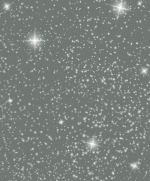
I've been using this vector of stars on a pedal I've been designing, which looks great when I have it on top of a Pearl Gray color background I created:

ToTheStars_Tayda_Gray-01.png

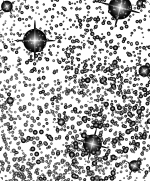
But when I turn the Gray background layer OFF (as it would be printed) I get this:

ToTheStars_Tayda_NoGray-01.png

Obviously there are all these black spheres around every star that would probably be printed like that. Not ideal! I don't understand why they're not visible on top of a background but are when they're isolated.

I tried "expanding" the layers of stars but it didn't really work. Anything I'm missing? A blending option or different expand method?

Thanks!
 
Hey Tayda/Illustrator friends I'm having a small issue that maybe you can help me with.

I've been using this vector of stars on a pedal I've been designing, which looks great when I have it on top of a Pearl Gray color background I created:

View attachment 64405

But when I turn the Gray background layer OFF (as it would be printed) I get this:

View attachment 64407

Obviously there are all these black spheres around every star that would probably be printed like that. Not ideal! I don't understand why they're not visible on top of a background but are when they're isolated.

I tried "expanding" the layers of stars but it didn't really work. Anything I'm missing? A blending option or different expand method?

Thanks!
Seems like the radial gradient on each of the stars is white to black instead of white to transparent. It’s not made visible for whatever reason with the background enabled, but it is when it’s turned off. That’s my best guess.
 
Hey Tayda/Illustrator friends I'm having a small issue that maybe you can help me with.

I've been using this vector of stars on a pedal I've been designing, which looks great when I have it on top of a Pearl Gray color background I created:

View attachment 64405

But when I turn the Gray background layer OFF (as it would be printed) I get this:

View attachment 64407

Obviously there are all these black spheres around every star that would probably be printed like that. Not ideal! I don't understand why they're not visible on top of a background but are when they're isolated.

I tried "expanding" the layers of stars but it didn't really work. Anything I'm missing? A blending option or different expand method?

Thanks!
Is the layer mode set to Lighten or Screen perhaps?
 
Seems like the radial gradient on each of the stars is white to black instead of white to transparent. It’s not made visible for whatever reason with the background enabled, but it is when it’s turned off. That’s my best guess.

Is the layer mode set to Lighten or Screen perhaps?

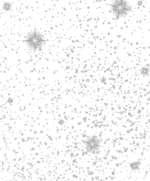
You were both right to some degree! The radial gradient was set to black instead of transparent, and thankfully it didn't take too long to fix the 200+ stars. I was left with a sort of gray burst effect however.

ToTheStars_Tayda_NoGray2.png

Since I'm printing on a pearl gray enclosure, I decided to just leave it as is and see how it turns out. Might look cool. Might not print.

Thanks for the suggestions!
 
I ordered a set of enclosures with the new masking service (to keep paint out of the inside of the enclosure). Turned out decent, but there is a thicker than expected tape residue on the inside circumference of the drill holes. I'm working out the best way to ream them out or use alcohol to clean, etc.
 
My bad for not being clear - I'm talking about the spot drill holes per the drill template for jacks and pots. I'd like to know if others are seeing a residue left over - my 1/4" jacks were pretty tough to install until I cleaned out the drill holes.
 
My bad for not being clear - I'm talking about the spot drill holes per the drill template for jacks and pots. I'd like to know if others are seeing a residue left over - my 1/4" jacks were pretty tough to install until I cleaned out the drill holes.
So the tape is allowing more powder than usual to accumulate in those holes? Maybe you’ll have to upsize them a touch more to accommodate it.
 
So the tape is allowing more powder than usual to accumulate in those holes? Maybe you’ll have to upsize them a touch more to accommodate it.
From what I'm seeing, it is more like a tape residue being left behind where it is attached at the drill locations. I'll get a picture this afternoon and post on one of the enclosures I have not cleaned up. On my first build with this service, I just scraped the residue out of the drill hole edge and moved along.
 
From what I'm seeing, it is more like a tape residue being left behind where it is attached at the drill locations. I'll get a picture this afternoon and post on one of the enclosures I have not cleaned up. On my first build with this service, I just scraped the residue out of the drill hole edge and moved along.
Like this?
riHGDQo.jpg


I was able to just pick it out with an old dentist tool I use for non-dental things (or a small flathead screwdriver)
eTcdVmP.jpg


Something to note though: that enclosre I paid for the masking service. I didn't get any on the inside, but I seemed to just get more powder coat in the threads? I can tap it out well enough, but kinda weird.
 
You could probably put a drop of denatured alcohol (or whatever your preferred solvent is) in the threads and make it easier to scrape or screw out. I haven't had any Tayda enclosures with powdercoating in the screw holes, but I have had a couple that didn't even have threads tapped. I have a 1590bb enclosure I made a custom Muff board for that still doesn't have the back cover on because I haven't tapped threads into the screw holes.
 
Back
Top