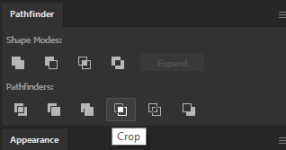
I merge mine, I'm not sure if it's a 100% requirement but it doesn't really hurt. If you just select all of those items and use the "Merge" tool in Illustrator I think it usually works just fine, at least with stuff like that.Quick question: (apologies if this has been asked and answered already):
In Illustrator, if you have overlapping elements with different colors do you need to merge them, or cut them out of the lower layer for printing? It seems like yes from what I read on the Tayda site but I'm actually not sure (I'm so rusty in Illustrator it's sad).
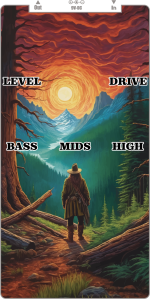
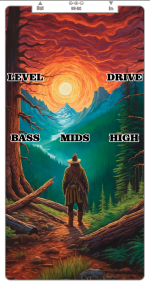
More specifically, here's my design, which will be printed on a white enclosure. Do I need to cut out or merge the overlapping text/gfx from the blue triangle shape below so they don't overlap, color-wise (all the text has been vectored)? Does that include the stroke around the triangle? Is this a stupid question? I'm a UV print n00b.
View attachment 66418
I've had that happen, too. I've been able to fix it by picking a slightly lighter shade of the color. I'd note that if you really want the color to pop, especially if you're using a darker enclosure, (1) splurge for the print the white layer twice option, and (2) one of the matte/gloss varnish options.I merge mine, I'm not sure if it's a 100% requirement but it doesn't really hurt. If you just select all of those items and use the "Merge" tool in Illustrator I think it usually works just fine, at least with stuff like that.
I also keep a "pedalname.ai" and then "pedalname final.ai" where I do all of the merging, turning text to outlines and getting rid of extra stuff, so if I notice I need to fix something I don't have to recreate it from scratch, I can just load the previous file, fix the issue and repeat the final steps.
A question for others, has anyone else had prints appear darker than they expect? It happened to me again on the latest batch and it's annoying. They still look ok, and especially in the sunlight, but since the day length is currently less than 6½ hours, they do tend to look a bit too dark for my taste. I wonder if I should start just increasing brightness or something as one of my steps.
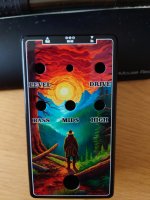
The thing is - I do splurge on both the double white layer and gloss varnish. Here's what the end product looks like:I've had that happen, too. I've been able to fix it by picking a slightly lighter shade of the color. I'd note that if you really want the color to pop, especially if you're using a darker enclosure, (1) splurge for the print the white layer twice option, and (2) one of the matte/gloss varnish options.
This has likely been repeated in this thread/elsewhere, but it's sort of my checklist of things.
So this element is a stroke effect. It needs to be converted to fills
View attachment 66419
So I'll go to this menu item
View attachment 66420 and you should see: View attachment 66421
if you don't, go to expand again, or expand appearance might be an option, then expand again until it's all plain paths.
Alternatively, with everything selected in your art layer, you could go to this menu item: Flatten transparency
View attachment 66422
and then set these options (the most important is the 'raster vector balance' needs to be 100% vectors, just in case)
View attachment 66423
Which should outline everything:
View attachment 66424
if in doubt, go hit control-y (or command-y) to enter outline mode: outlined items will look like unfilled lines, whereas live text (not-outlined) and strokes will appear as solid and thin lines, respectively. In this example, left is NOT outlined, right IS outlined. If that makes any sense.
View attachment 66426

Select all your art vectors, go to the Swatches palette, and under the top right menu choose "Add selected colors", and that will put ALL of the selected stuff gets put into your swatches, but the best part, is that they become GLOBAL swatches. That basically means you can edit the color from the swatches and it applies everywhere that swatch is applied!
Oh totally. Huge pain, especially if the client is super …particular, but doesn't want to shell out for a spot plate in their printed material.CMYK color guides that would be useful. Color proofing is a bitch an a half and color books make it a little easier.
far from a perfectly accurate resource, but I tend to use this site as a reference. I have a traditional pantone guide (not a bridge guide), so I find the real-world color I want in the guide, and then look it up on this site, and copy the CMYK values to use in my file.
Could work. I'll admit, the last time I looked at a book for a client was probably 2019, and they've expanded quite a bit since. I think we were only using Solid Coated, Uncoated, metallics, and maybe CMYK coated & uncoated. So other than needing new chip books every so often, we didn't do much beyond that. I don't see why not, though. I could test it on my work subscription sometime this week.with these swatches imported into the current versions could it do the same thing?
I'll admit, the last time I looked at a book for a client was probably 2019