Tayda UV Printing

I just did my first UV job and although I haven’t received the enclosure yet, the job succeeded. I used AD to create (and double check) the pdf. As soon as I have a minute I’ll grab my laptop and open your file in AD to verify.
Awesome, thanks @giovanni (and congrats on your first print)!

I have an updated PDF... Extraneous shapes should now be gone and I tweaked the letter spacing. I'm still not sure I've figured out the layer order issue but I haven't been able to reproduce that on my machine after repeatedly exporting and re-importing the PDF.
 

Attachments

That was my understanding! Not sure what will come out with a raster image tbh. I vectorised this.
They emphasized vectorizing everything because of fonts, but I have seen raster images being printed by other forum members. That being said, I am crossing my fingers!
 
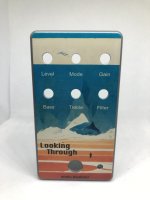
I tried some new things with my latest print/drill and I am really pleased with the results. The pedal is the Narcissus Overdrive (DOD Looking Glass clone).

1. I had heard of people submitting non-vector designs successfully, but was still nervous from all the warnings about it on the Tayda website. The background image on this pedal is NOT vectorized at all and looks great.

2. I tried to make the entire top of the pedal gloss (same area as the background image), but kept getting error messages from Tayda about the GLOSS layer not existing - even though it did. I eventually gave up and printed it without the gloss, but I don't know if they did not like a full gloss or I just submitted something wrong (I have gotten a more sparse gloss layer to work in the past).

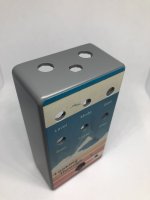
3. Since Tayda now offers cutting straight lines and even encourages people to make interesting designs, I decided to try a bit of an experiment. For unknown reasons I get irrationally upset when my small DC jacks get loose and rotate in the enclosure...which they always seem to since I buy it the cheapest mini DC jacks. I was able to cut a shape that had a flat top and bottom and sides that get close to arcs (but are really small straight lines). It worked! The mini DC jack does not fit as snuggly as I would like, but the concept was a success and the jack still cannot rotate.
IMG_8653.jpeg IMG_8647.jpeg
 
I tried some new things with my latest print/drill and I am really pleased with the results. The pedal is the Narcissus Overdrive (DOD Looking Glass clone).

1. I had heard of people submitting non-vector designs successfully, but was still nervous from all the warnings about it on the Tayda website. The background image on this pedal is NOT vectorized at all and looks great.

2. I tried to make the entire top of the pedal gloss (same area as the background image), but kept getting error messages from Tayda about the GLOSS layer not existing - even though it did. I eventually gave up and printed it without the gloss, but I don't know if they did not like a full gloss or I just submitted something wrong (I have gotten a more sparse gloss layer to work in the past).

3. Since Tayda now offers cutting straight lines and even encourages people to make interesting designs, I decided to try a bit of an experiment. For unknown reasons I get irrationally upset when my small DC jacks get loose and rotate in the enclosure...which they always seem to since I buy it the cheapest mini DC jacks. I was able to cut a shape that had a flat top and bottom and sides that get close to arcs (but are really small straight lines). It worked! The mini DC jack does not fit as snuggly as I would like, but the concept was a success and the jack still cannot rotate.
View attachment 40391View attachment 40392

Awesome to hear you were able to get a non-vector graphic to work so well! I have a very complicated raster graphic that I put together a few years ago and I was just about to undertake the daunting task of vectorizing it, which surely would have taken an absolutely horrendous amount of time.
 
this is a cool video straight from the source. The parts about white and gloss gradients are especially cool.
Very interesting, it never occurred to me to mess with the opacity of the gloss. Seems like you could make some neat effects with multiple gloss layers. I'm not sure what Tayda would do if an order came through that way, but proactively reaching out to Hugo would probably help. Thanks for sharing.
 
I think I have only posted here a few times but lurk from time to time and think I have travelled this thread many times since the pandemic hit. In doing so I have lusted after seeing all of the beautiful results folks are getting with Tayda. And I recently saw a Tayda print in person that a friend made so I am finally going to try out their UV printing service soon. I also have been etching enclosures for my builds for 10 years so exciting to get more into color work as all of my designs have been made in black and white in photoshop. through my job I have creative cloud but only recently have been tinkering in Illustrator mainly trying to prep work for this purpose.

I have a simple question about the Tayda's color layer. Say I have multiple color layers in photoshop. In the examples I have attached I have colored fonts over black and black over red. If I merge these into one color layer is that fine for printing or do I need to make sure there is no black or red under the fonts? Or no red under the black, etc? Just want to make sure the printer won't read another color under another color if the layers are merged. Once I merged the layers in photoshop, I would import the PSD into illustrator and run image trace which I have learned. Hope that makes sense. Basically, I work in photoshop as I do a lot of copy and pasting of elements to create my graphics. Thanks in advance! -Richard
 

Attachments

  • Screen Shot 2023-01-18 at 12.46.21 PM.png
    Screen Shot 2023-01-18 at 12.46.21 PM.png
    306.8 KB · Views: 14
  • Screen Shot 2023-01-18 at 12.49.04 PM.png
    Screen Shot 2023-01-18 at 12.49.04 PM.png
    433.7 KB · Views: 14
I think I have only posted here a few times but lurk from time to time and think I have travelled this thread many times since the pandemic hit. In doing so I have lusted after seeing all of the beautiful results folks are getting with Tayda. And I recently saw a Tayda print in person that a friend made so I am finally going to try out their UV printing service soon. I also have been etching enclosures for my builds for 10 years so exciting to get more into color work as all of my designs have been made in black and white in photoshop. through my job I have creative cloud but only recently have been tinkering in Illustrator mainly trying to prep work for this purpose.

I have a simple question about the Tayda's color layer. Say I have multiple color layers in photoshop. In the examples I have attached I have colored fonts over black and black over red. If I merge these into one color layer is that fine for printing or do I need to make sure there is no black or red under the fonts? Or no red under the black, etc? Just want to make sure the printer won't read another color under another color if the layers are merged. Once I merged the layers in photoshop, I would import the PSD into illustrator and run image trace which I have learned. Hope that makes sense. Basically, I work in photoshop as I do a lot of copy and pasting of elements to create my graphics. Thanks in advance! -Richard
You're going to want to make sure that only visible objects are active in the color layer. After converting all your text/objects to curves, you'll want to add/subtract objects in your color layer until the color layer does not have any overlapping objects. This is done a LOT easier in a vector program (like Illustrator or Affinity Designer) versus trying to do this in Photoshop.

I don't know if this helps, but you can have RDG_WHITE under as much or as little of the color layer as you prefer. Personally, I like to create a copy of all objects in my color layer and place them in the WHITE layer. By doing this, I have white under everything and I find that color objects tend to look more accurate after printing.
 
You're going to want to make sure that only visible objects are active in the color layer. After converting all your text/objects to curves, you'll want to add/subtract objects in your color layer until the color layer does not have any overlapping objects. This is done a LOT easier in a vector program (like Illustrator or Affinity Designer) versus trying to do this in Photoshop.

I don't know if this helps, but you can have RDG_WHITE under as much or as little of the color layer as you prefer. Personally, I like to create a copy of all objects in my color layer and place them in the WHITE layer. By doing this, I have white under everything and I find that color objects tend to look more accurate after printing.
That’s what I did as well. It’s very important to subtract the non visible parts.
 
You're going to want to make sure that only visible objects are active in the color layer. After converting all your text/objects to curves, you'll want to add/subtract objects in your color layer until the color layer does not have any overlapping objects. This is done a LOT easier in a vector program (like Illustrator or Affinity Designer) versus trying to do this in Photoshop.

I don't know if this helps, but you can have RDG_WHITE under as much or as little of the color layer as you prefer. Personally, I like to create a copy of all objects in my color layer and place them in the WHITE layer. By doing this, I have white under everything and I find that color objects tend to look more accurate after printing.

That’s what I did as well. It’s very important to subtract the non visible parts.

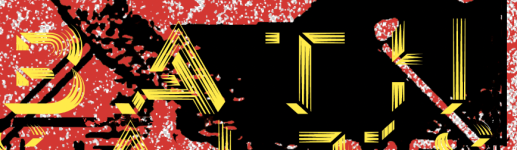
Hey, thanks very much for the replies. I plan on adding a white layer copy of the color layer per Tayda's instructions for sure. After reading your replies about not having overlap on the color layer I did some googling about how to subtract anything in color that is not visible by whatever is on top of it and didn't really find what I was looking for so I did a quick test with 3 colors that were all individual layers in photoshop. I then merged them into one layer and saved the PSD file. I imported that into illustrator as shapes and then did an image trace. Once that was done I expanded the trace and it looks like there is no overlap with the colors. In the screenshots attached, the first one is the image that was traced. And the 2nd image, I moved the T in test and looks like there is nothing underneath it (black or red) so I think I should be good to go!
 

Attachments

  • Screen Shot 2023-01-18 at 8.36.44 PM.png
    Screen Shot 2023-01-18 at 8.36.44 PM.png
    182.3 KB · Views: 11
  • Screen Shot 2023-01-18 at 8.37.31 PM.png
    Screen Shot 2023-01-18 at 8.37.31 PM.png
    167.5 KB · Views: 11
Following up on my earlier post, I submitted two jobs to Tayda recently and had the following issue flagged on both of them:

Customer bought Gloss service but there is nothing in artwork painted with rdg_gloss from Roland Swatch so machine can't know where to print gloss or matte.

I'm kind of stumped as to what I might be doing wrong. To recap:
  1. I'm using Affinity Designer.
  2. I imported the Roland swatches per this helpful post.
  3. I set the color for each of the items in my GLOSS-V layer to RDG_GLOSS from the "Roland Color System Library (spots)" swatch.
Maybe something is off with my PDF export settings and the color data is getting lost at that stage? I used the PDF/X-4 export preset and verified that the "Honor spot colors" box was checked (not sure if this matters).

I've attached the latest PDF file for one of the projects in the hope that someone might be able to spot what's going wrong. And here's a link to the .afdesign file on Google Drive since the forum won't let me upload it.

https://drive.google.com/file/d/1FtxuDx6J-wztrUHAzdgR_PubADATc8Jl/view?usp=share_link

Any help would be appreciated!
 

Attachments

Customer bought Gloss service but there is nothing in artwork painted with rdg_gloss from Roland Swatch so machine can't know where to print gloss or matte.
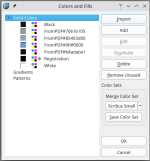
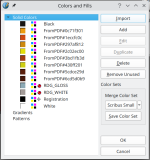
I had said the same in your earlier post when I looked at the files in Scribus. Here's an example from Scribus showing the color information in your file vs one of mine:

Screenshot_20230123_084659.png Screenshot_20230123_084738.png
I agree there is probably something about your PDF export that needs adjusting. I don't use Affinity Designer but there are enough people here that do. Hopefully one of them can help you find the option you're looking for.
 
Here's an example from Scribus showing the color information in your file vs one of mine
Interesting — this side-by-side view is definitely helpful. I'm going to install Scribus and use it to test the various export settings in Affinity Designer, since that seems to give a more straightforward view of what's actually in the file compared to opening the PDF back up in AD. Thanks!
 
Back
Top