KR Sound
Well-known member
That would explain it.They had April 12-16 off for Thai new year.

That would explain it.They had April 12-16 off for Thai new year.

I don't know any details about how they work, but I suspect if it's a bunch of similar enclosures, it might be much faster doing those at once rather than 5 different pedals one by one. I feel like they at least do powder coating in batches of the same colors.I have a suspicion that they will use a a “triage” approach and prioritize large orders.
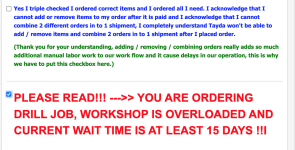
My current order of 26 enclosures is moving faster than my previous order of 5. Much faster in fact.

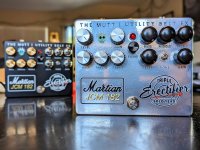
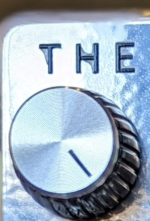


Is that the gloss that’s bleeding? I’ve noticed it being sloppy lately too.View attachment 73326
Okay so I decided to do a Chromium version of my pedal in the style of the mirror face Mesa Rectifiers. I'm choosing to see the scratchability of the paint as a feature not a bug. Like those "thin skin" strats.
I'm honestly blown away by the paint (although I did handle it with extreme caution.
The one thing I am bummed about however is there seems to be some pretty severe bleed in the white layer.
View attachment 73328View attachment 73329
I mean jeez! The white really bled all around. I almost feel silly raising an issue with Hugo about a Chromium enclosure that isn't scratch or chip related. But it looks strangely sloppy compared to all the other colors that were printed...
I tend to see that. I have 50 drill/paint/print enclosures in my order that are all the same color but the print is 25 of one design and a handful each of 4 other designs, and the 25 were finished a couple days before the others.I don't know any details about how they work, but I suspect if it's a bunch of similar enclosures, it might be much faster doing those at once rather than 5 different pedals one by one. I feel like they at least do powder coating in batches of the same colors.

I know @flemming uses this workflow on Linux, maybe he has some thoughts.Is there an updated guide for working with Inkscape/Scribus? I can't seem to find one and I don't understand why my file is getting rejected for having no data in the white layer. Is there a way to check this without a paid Adobe product?
For reference, my process was roughly:
1. Create design in Inkscape with appropriate layers (`WHITE`, `COLOR`)
2. Export by doing `File` -> `Save as...` -> `Layers as Separate SVG`
3. Scribus -> Create from Template -> 125B
4. For each layer, select appropriate layer in Scribus, `File` -> `Import` -> `Get Vector File`, select appropriate layer SVG from Inkscape
5. Import swatches by doing `Edit` -> `Colors...` -> `Import` -> select AI file from Tayda
6. Replace all colors on `WHITE` layer by doing `Edit` -> `Replace Colors...` and selecting the current white layer colors with `RDG_WHITE`
7. Convert to CMYK by doing `Script` -> `Execute Script...` -> `rgb_to_cmyk.py`
8. Go to `Edit` -> `Colors` -> `Remove Unused`. Make sure remaining colors are all CMYK
9. `File` -> `Export` -> `Save as PDF` -> `PDF 1.5`, check `Include Layers`
10. On color tab, set `Output Intended For: Printer`
11. Save file
I think you're right that it's the gloss layer that bled. The white in the logo does look pretty crisp.Is that the gloss that’s bleeding? I’ve noticed it being sloppy lately too.
Is there supposed to be a white outline around your black logo?

I use Inkscape + Scribus and while I don't follow the same exact workflow as you, when I look at your resulting file in Acrobat Reader it seems okay to me. I've never use the script to convert from RGB to CMYK. I have always done it manually. This won't fix your problem, but in general I suggest putting white under everything, in the above you sometimes have it under other colors and sometimes not. The reds will pop better if white is under them. Sorry I know that last part doesn't really help.Is there an updated guide for working with Inkscape/Scribus? I can't seem to find one and I don't understand why my file is getting rejected for having no data in the white layer. Is there a way to check this without a paid Adobe product?
So I did figure this out, sort of. The Scribus wiki has 1.4.6 as the latest stable version. The latest stable version for Windows is actually 1.6.x, which you can get by going to their actual SourceForge page (didn't know people still used SourceForge to distribute anything that wasn't malware). So I downloaded that one, redid the process, exported the PDF as v1.7, and it worked.I use Inkscape + Scribus and while I don't follow the same exact workflow as you, when I look at your resulting file in Acrobat Reader it seems okay to me. I've never use the script to convert from RGB to CMYK. I have always done it manually. This won't fix your problem, but in general I suggest putting white under everything, in the above you sometimes have it under other colors and sometimes not. The reds will pop better if white is under them. Sorry I know that last part doesn't really help.

Looks like my order of 10 finally got drilled, so we’re finally moving


I recommend you save-as and make a separate "art prep" file, so you don't worry about destroying a working file with editable (live) text and so on.
So for an example with color:
that cyan colored guide inside the enclosure area is the Tayda print limit for this 1590B print:
View attachment 66427 View attachment 66430
Turned off the fake enclosure layer I use now we're prepping art, and turned on the transparency grid (shift+ctrl/cmd+d) and set it to dark for my cleanliness and comfort:
View attachment 66431
in outline mode again, we can see there's a lot of overlapping things as well as things outside the printable area. We'll fix that.
View attachment 66432
first, let's fix the overlaps. select everything in your art layer (which should be outlined and expanded) and go to the pathfinder and use "Divide" (lower left):
View attachment 66433
What that does is basically trim everything that's currently overlapping.
In this design's case, I had a stroke around the text in black, to set it off from the patterns of the face, so I'll need to delete those by use the white arrow tool and selecting a part with black (the enclosure color), then going to the select menu> same > fill color
View attachment 66434
now our text has a buffer from the rest of the green
View attachment 66435 View attachment 66436
Now we'll crop it all, so it is within the printable area. Make a rectangle the size of the print area and align it to your guide or artboard
View attachment 66437
Then select all
View attachment 66438
continued....
Fantastic. I will go check it out. Thanks.