I'm going to see how this will work. I can't figure out if there's a way to designate graphics on the copper layer as a NET. So instead, I imported an svg and connected the pads with tiny traces. Not sure if I need to do that or not to be honest.
This should be pretty rad with the After Dark clear mask.
Just watch the round tracks plug-in as it pertains to junctions. The plug-in sometimes doesn’t make nice filets where junctions occur. I’ll be back in town (around my computer) next week, so if you need a second set of eyes using KiCad, send me a pm and I can try to help. I’ve transitioned completely from Eagle in the last 3-4 months so I may be able to help save you some headache in some areas.
Not really pedal related but I thought I’d show it off…
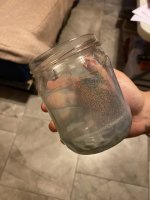
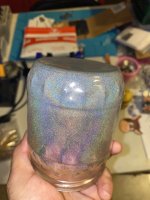
My Gf wanted to powder coat a left over parmigiana cheese jar. So we brought it up to temp and hot flocked the jar with the left over space dust clear coat. I could’ve done better taping the lid a bit straighter but for just having fun it came out cool!
My gf now has an empty candle jar.....and she wants to powder coat an actual color! Im interested in seeing how the color will play with the translucent glass.
My gf now has an empty candle jar.....and she wants to powder coat an actual color! Im interested in seeing how the color will play with the translucent glass.
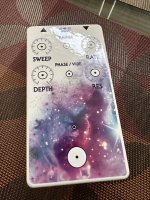
Just finished curing my film-free decal for my Circulator build. Once it has cooled, I’ll apply clearcoat and drill it so I can solder the pots to the board. Lots going on in life lately so this is the first build I’ve had a chance to work on in a couple of months.
Just finished curing my film-free decal for my Circulator build. Once it has cooled, I’ll apply clearcoat and drill it so I can solder the pots to the board. Lots going on in life lately so this is the first build I’ve had a chance to work on in a couple of months.
I work in Adobe illustrator – and I’m definitely still on the extreme "beginner" end of the scale. I originally started working with it when I did a lot of Tayda UV printing. However, I realized that you don’t have to worry about a lot of the picky stuff that will get your print job kicked back at Tayda if you are simply printing on film-free decals. Since those decals give an end result that is pretty comparable to UV printing (especially if you clearcoat) - and it ends up being a lot cheaper and quicker than UV printing – that’s what I do exclusively now. This isn’t really a detailed tutorial, but my steps are the following:
Important thing to remember – since the printer doesn’t print white, you will use the color white in your art for anything that you want to be transparent – such as the beveled border. Anything in white will just show the color of the underlying enclosure.
1. Download Tayda’s 125B illustrator artboard that they provide for creating pedal art in illustrator. It comes with three blank layers “gloss”, “color”, and “white”. Snce my printer doesn’t print white, I just delete the white layer. I rename the “gloss” layer to “drill“.
2. Print out Robert’s drill template in the documentation, mark the centerpoint, and then use a ruler to figure out the X-Y coordinates of where the drill holes should go. (Alternatively, if Robert has a link to a Tayda drill template, you can just steal the coordinates from there). I then just make circles and place them at the appropriate coordinates on my “drill“ layer.
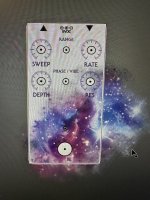
3. I leave the drill layer visible so I can see where the pot and switch holes are, and then put all my graphics and text on the color layer. In this case, I just found a cosmos graphic on the Internet that had a transparent background, and dragged that onto the color layer. Since the printer will not print outside of the art board, you don’t actually have to clip the graphic art to fit the art board – it’s fine if it overhangs (see picture).
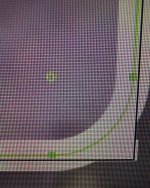
4. Then, to get the curve/bevel on the corners I just create a white rectangle the same size as the overall art board, place it atop the graphic, and set it to only be an outline as opposed to a solid rectangle. I set the thickness enough so that it’s sort of “cuts into“ the graphic about a millimeter or so. Then, if you look down at one of the corners you will see a green dot (see picture below ) - pulling this dot inward from the corner will cause all four corners of the white rectangle to curve and cover over the graphic. Since the color white doesn’t print on my printer, this white border effectively acts as a mask so the enclosure color comes through, making the underlying graphic have that “curved on the corners“ look. (I’m sure smarter people who actually know how to use illustrator know of a better way to do this, but it works for me).
5. I then create a PDF of the project with both the drill and the color layer visible so that the final decal has the drill holes marked. I print it on film free paper and follow an excellent tutorial that our own @Guardians of the analog posted over on the MadBean forum under the name “wintersoldier”. Once it has set and been fully cured, I then hit it with a clearcoat, let it sit for a day or so, and then drill out the holes.
I hope that’s helpful. Thanks again for the kind words.