Tayda UV Printing

Yes I see what you mean. As mentioned earlier the bleed could be manually added as a white stroke on the buffalo. I also use the base template from tayda (whichever enclosure type you have) and strip it down so that it automatically sets up the layers and colour palates needed. Ai isn't really fun to use but after you get used to the way it all works it’s not so bad. 🙂
 
At least both images are recognizable as a bison?

I'm at this step now. I vectorized an image at autotracer.org and it seems to have 100+ elements. How do I apply the proper swatch to it?
The brighter red one, barely looks like a bison.. it's pretty blobby lol.. the first two look pretty good..
Are you using Affinity, or Illustrator? About a quarter way down this page you'll see the link to download the Roland VersaWorks swatch. You'll
have to import it to your program.
To note.. with Affinity, you have to ensure when you add the RDG White and RDG Gloss to your designs, you're going to want to ensure the swatch is both highlighted and has the little dot.


Tayda Printing Tutorial by Mike.


Attachments

  • 242096530_860827251237896_9143812975925983511_n.png
    242096530_860827251237896_9143812975925983511_n.png
    31.2 KB · Views: 12
Really bummed to hear Affinity’s PDF export is still so behind spec. Layers (to the point they would get recognized in Illustrator and for our uses, there’s another meaning of layers in the spec as well) have been a thing in PDFs for a decade now.

Last time I thought about this as my morning adderall dose kicked in I did a bunch of digging into possible ways to export SVG to a proper PDF. It seemed reasonable to at least get it “out” of Affinity, because SVGs do have their own sort of layers, but all of the open source PDF libraries that can convert SVG also produce the same result. I imagine Affinity is relying on one of these libraries which in terms of development prioritization is something I am more than understanding of.

There’s probably things that Tayda could do to retrofit but it really is 100% just Affinity not being able to produce an industry standard production file. I had been so tempted to see if it would work for my design workflow, because Adobe is a devil in its own right, until seeing everyone’s experiences with it over the course of this thread.

 
Last edited:
Hello all, in my experience, I don't have any issue for creating proper layers using Affinity Designer. Tayda also confirmed that COLOR, WHITE and GLOSS layers are properly defined in my designs. You can also check the layers on the pdf using Acrobat Reader. Those are my 2 cents.

Cheers
 
Really bummed to hear Affinity’s PDF export is still so behind spec. Layers (to the point they would get recognized in Illustrator and for our uses, there’s another meaning of layers in the spec as well) have been a thing in PDFs for a decade now.

Last time I thought about this as my morning adderall dose kicked in I did a bunch of digging into possible ways to export SVG to a proper PDF. It seemed reasonable to at least get it “out” of Affinity, because SVGs do have their own sort of layers, but all of the open source PDF libraries that can convert SVG also produce the same result. I imagine Affinity is relying on one of these libraries which in terms of development prioritization is something I am more than understanding of.

There’s probably things that Tayda could do to retrofit but it really is 100% just Affinity not being able to produce an industry standard production file. I had been so tempted to see if it would work for my design workflow, because Adobe is a devil in its own right, until seeing everyone’s experiences with it over the course of this thread.
What I find so odd is that it's so hit/miss. I have fairly simple designs, but all mine have been perfectly printed and made in Affinity.. I really feel like my issue is from dealing with a difficult enclosure color and in my first attempt, not correctly importing and applying the RDG swatch. I'm going to sit down tomorrow and tinker and see what I can come up with to make this work.. On the plus side.. I've got one fully built and it sounds great, and will give it away once I do a run of these when properly printed!!
 
To note.. with Affinity, you have to ensure when you add the RDG White and RDG Gloss to your designs, you're going to want to ensure the swatch is both highlighted and has the little dot.


Tayda Printing Tutorial by Mike.

I took one of the pre-made templates and tried to modify it in affinity only. I haven't used inkscape yet and realized I was trying to skip too many steps.
 
Last edited:
What I find so odd is that it's so hit/miss. I have fairly simple designs, but all mine have been perfectly printed and made in Affinity.. I really feel like my issue is from dealing with a difficult enclosure color and in my first attempt, not correctly importing and applying the RDG swatch. I'm going to sit down tomorrow and tinker and see what I can come up with to make this work.. On the plus side.. I've got one fully built and it sounds great, and will give it away once I do a run of these when properly printed!!

Completely agree with you on this. You're walking so we can run by figuring it all out and sharing :)
 
Completely agree with you on this. You're walking so we can run by figuring it all out and sharing :)
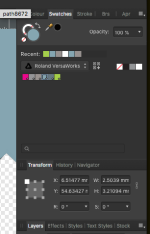
I've recently discovered that using all Roland spot colors for the color layer in Affinity results in the most accurate representation of the intended colors. Of course, you'll have to preserve spot colors on export, but I've had very good results choosing from Roland's library.
 

Attachments

  • Screen Shot 2021-10-13 at 10.46.49 AM.png
    Screen Shot 2021-10-13 at 10.46.49 AM.png
    159.8 KB · Views: 20
I would start with @dmnCrawler's templates - they'll have the right spot color layers setup, I believe he also has a general tutorial on his website

Thanks. That's what I have been following. I was trying to skip using Inkscape and (only have affinity and AI). His tutorial is for using a combo of Inkscape and Affinity. I have the full version of Adobe Illustrator but just don't know how to use it. There were a few comments about still having some issues with layers in the PDFs that Affinity creates. That got me worried if the method is not foolproof. So... I was thinking why not just do the whole thing in AI since I have it?
 
Thanks. That's what I have been following. I was trying to skip using Inkscape and (only have affinity and AI). His tutorial is for using a combo of Inkscape and Affinity. I have the full version of Adobe Illustrator but just don't know how to use it. There were a few comments about still having some issues with layers in the PDFs that Affinity creates. That got me worried if the method is not foolproof. So... I was thinking why not just do the whole thing in AI since I have it?

Ah my bad I forgot that's how he did it - I've just been doing them in illustrator from the jump without issue so I haven't actually read through his tutorials.

If you're familiar with Illustrator, playing around with my enclosure template starting points might be enough to get the gist. Here's my illustrator files for 2 knob, 3 knob, 4 knob, 5 type 1 and 5 type 2. If the color palettes don't load with those, I also have the spot colors uploaded. That palette also has the pantone swatches they list for their enclosures.

Few things worth mentioning specifically about my Illustrator templates:
  • I plan out designs on the "Design" layer and keep the rest locked until I start creating a production pdf
  • For the layers that are not for the Tayda spot colors my template layer setup is a little messy - I have hole positions and then reference paths for the knobs I use and their diameters, the background color is sometimes in that layer and sometimes not.
  • When I'm done with my design I'll save a copy preserving my guides and whatnot. Then I'll setup the UV Printing Spot color layers in a copy.
  • From that new file I'll move/duplicate elements from the Design layer into the corresponding Tayda production layers (White, Gloss, Color), eventually exporting a PDF to upload that has the design layer deleted.
And then just in general for using Illustrator tayda uv print jobs:
  • Place origin at the middle of the enclosure - the distances from center are the most important ones for Tayda and matching up drill holes
  • If you're starting with a non standard drill template file from pedalpcb, to get the positioning right:
    • Create right sized artboard for the enclosure
    • Place drill template true to size (8.5"x11") into document
    • Vertically and horizontally center the drill template page to the artboard
  • Expand everything, outline all text, etc (another reason I preserve an original file is in case I fuck up after this)
  • Do a pass of your entire design on the white layer. Your colors will be more accurate especially on darker enclosures. They could charge for even a single and I would still do it. I will shout this from the rooftop every time I hop in this thread, do it, do it, do it, do it.
 
I've recently discovered that using all Roland spot colors for the color layer in Affinity results in the most accurate representation of the intended colors. Of course, you'll have to preserve spot colors on export, but I've had very good results choosing from Roland's library.
ohh this is great!!
In my case the colors have shown the way I've wanted (I'm a photographer so I work on calibrated monitors), but I just may use one of these spot colors on my next go!
As for the bleed.. I took a look over my files and realized that for the white layer, I added a stroke to the buffalo, hence the bleed... so I think my problem is solved!!
 
I've recently discovered that using all Roland spot colors for the color layer in Affinity results in the most accurate representation of the intended colors. Of course, you'll have to preserve spot colors on export, but I've had very good results choosing from Roland's library.

Roland's UV printers print in process other than white and finishes and will convert these spot colors to CMYK so there's really not any reason to go out of your way to use them over other CMYK color libraries. Obviously if it works for ya no reason to fix something that ain't broke.

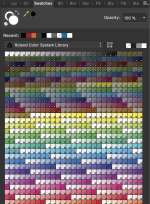
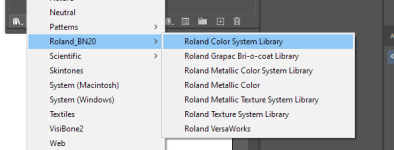
Took me a while to find the swatches is the only reason I emphasize that. Here they are for Illustrator http://files.fine.rip/pedals/Roland_BN20.zip

1634154688015.png
 
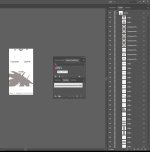
So wintersoldier was helping me. He suggested that I could import just the colour layer from Affinity as a pdf into AI and duplicate the layer. I did this and re labelled it as White. I had imported the Roland Versa swatch and went to apply the white part to the layer but it looks grey. I suspect I screwed up this step?
 

Attachments

  • AI White Layer.jpg
    AI White Layer.jpg
    196.9 KB · Views: 8
So wintersoldier was helping me. He suggested that I could import just the colour layer from Affinity as a pdf into AI and duplicate the layer. I did this and re labelled it as White. I had imported the Roland Versa swatch and went to apply the white part to the layer but it looks grey. I suspect I screwed up this step?
No, the “RDG White” is intended to look grey on your monitor. It will print as white.
 
No, the “RDG White” is intended to look grey on your monitor. It will print as white.
Thanks. I thought I messed it up and I was supposed to go into the brushes section and select white after selecting it in the swatch.
I assume the order is important? ie. White 1st, Colour 2nd, Gloss 3rd?
 
Thanks. I thought I messed it up and I was supposed to go into the brushes section and select white after selecting it in the swatch.
I assume the order is important? ie. White 1st, Colour 2nd, Gloss 3rd?
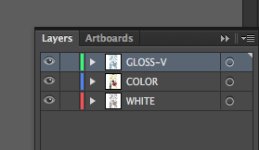
I have my layers set up like this in Illustrator (I think I set them up like this when I first started using the service, as that was the way it is shown on Tayda's UV page )
Capture d’écran 2021-10-14 à 07.02.51.png
Though I'm not sure if the order makes a difference, as I think the printer will print the RDG White first, the COLOR info and the Gloss coat last (As I said, totally unsure about this one).
 
Back
Top