Tayda UV Printing

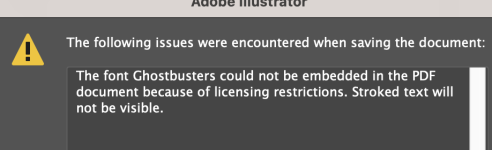
Did you convert the fonts to paths/objects? You should do this anyway once you're done editing the text and it should circumvent this issue?

Good tip. I've never done that before. But that seems to have worked. (Command+Shift+O)
I saved and the error didn't appear this time. (I got the error every time I hit save until now.)

Thanks man!
 
Good tip. I've never done that before. But that seems to have worked. (Command+Shift+O)
I saved and the error didn't appear this time. (I got the error every time I hit save until now.)

Thanks man!
So to give me context around this, when text is live and editable, the PDF is attempting to embed the font so that other computers that don't have it installed can use it (Like a Roland UV printer in Thailand for instance). But outlining text is a very standard print procedure that converts them into vector shapes, as if someone drew the text with shapes instead, it makes them indistinguishable. So anyones computer can read them just the same way it'd read a circle or a square in vector. The downside here is that the text isn't editable. That's of course not a concern for us at all because it's ready to be printed. For this reason though, you'd often have two session files saved (like Illustrator AI files). One called "MyAwesomeDesign.ai" and another called "MyAwesomeDesignOL.ai", indicating your outlined one, and one you still have live text in if you ever wanted to make changes to the text. Always outline your text when ready for print going forward.
 
…For this reason though, you'd often have two session files saved (like Illustrator AI files). One called "MyAwesomeDesign.ai" and another called "MyAwesomeDesignOL.ai", indicating your outlined one, and one you still have live text in if you ever wanted to make changes to the text. Always outline your text when ready for print going forward.

Your analysis is completely accurate by my understanding. I started keeping a 2nd editable copy, and a "send to Tayda" copy of the file.

This is the first time I've encountered a font asserting its right to not be embedded. Normally I leave the fonts editable, believing that still counted as "vectorized."
 
Your analysis is completely accurate by my understanding. I started keeping a 2nd editable copy, and a "send to Tayda" copy of the file.

This is the first time I've encountered a font asserting its right to not be embedded. Normally I leave the fonts editable, believing that still counted as "vectorized."
Definitely this. We did the exact same thing in the print graphic design world. Working file, print file (not to mention archives and previous versions with every iteration). I don't go quite that hard at home: a new file for every change, but it's a good practice.
 
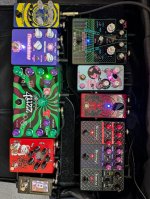
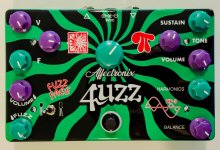
Tayda UV print explosion! Have my whole board almost complete with my own builds/art designs. Started building again in February after a 15 year hiatus. All PPCB circuits except the Flanger which is BYOC. Just need to replace the Chinese Fuzz Factory clone but I already have the circuit designed and art in progress!
IMG_9928.jpeg
 
Very nice work! Can tell us about the 4uzz?
Thank you! And I would love to!
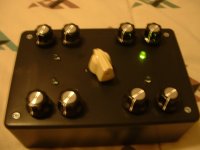
Came up with the “concept” and name 18 years ago and built a 4-in-1 fuzz (posted details on the Ultimate-Guitar forum back then). I used the Tim Escobedo MultiFace circuit and built 4 of those in 1 plastic RadioShack enclosure, but ran only on batteries and had no bypass switch. The concept was you don’t really need to run more than 1 fuzz circuit at a time on a board so use a rotary switch to switch between the circuits and select the one you want at that time.

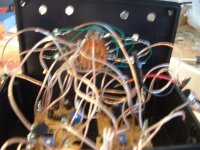
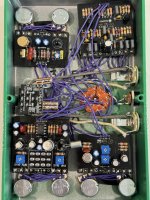
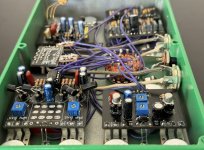
Fast-forward to now when I started building again. I got my hands on my old prototype from my parents house and saw the spaghetti wiring inside and figured this is unsalvageable. Time for 2.0.

4uzz became the 4-in-1 classic fuzz box. I chose 4 “classic” type fuzz circuits, and wired them to a rotary switch to select which is engaged, with of course indicator light on each circuit and only active when pedal activated (all off when bypassed) - I solicited help from this forum to help figure out how to do so because my knowledge in the field a few months ago wasn’t where it is now after a long hiatus.

1. Fuzz face with Ge (Soviet π30 PNP) vs. Si (BC183L)
2. Analogman Sunface (Soviet GT404Б NPN)
3. Big Muff Pi - Rams head version
4. Harmonic Percolator - Albini mods with NTE102 Ge and 2N3565 Si

And with that was born the new 4uzz. (Sorry for the lengthy origin story). Photos don’t show the updated transistors and you can see I messed up with the order of Fuzz/Vol controls and had to wire the pots individually!
Picture 014.jpg Picture 020.jpg
IMG_9978.jpeg IMG_9979.jpeg IMG_7081.jpeg
 
Last edited:
Thank you! And I would love to!
Came up with the “concept” and name 18 years ago and built a 4-in-1 fuzz (posted details on the Ultimate-Guitar forum back then). I used the Tim Escobedo MultiFace circuit and built 4 of those in 1 plastic RadioShack enclosure, but ran only on batteries and had no bypass switch. The concept was you don’t really need to run more than 1 fuzz circuit at a time on a board so use a rotary switch to switch between the circuits and select the one you want at that time.

Fast-forward to now when I started building again. I got my hands on my old prototype from my parents house and saw the spaghetti wiring inside and figured this is unsalvageable. Time for 2.0.

4uzz became the 4-in-1 classic fuzz box. I chose 4 “classic” type fuzz circuits, and wired them to a rotary switch to select which is engaged, with of course indicator light on each circuit and only active when pedal activated (all off when bypassed) - I solicited help from this forum to help figure out how to do so because my knowledge in the field a few months ago wasn’t where it is now after a long hiatus.

1. Fuzz face with Ge (Soviet π30 PNP) vs. Si (BC183L)
2. Analogman Sunface (Soviet GT404Б NPN)
3. Big Muff Pi - Rams head version
4. Harmonic Percolator - Albini mods with NTE102 Ge and 2N3565 Si

And with that was born the new 4uzz. (Sorry for the lengthy origin story). Photos don’t show the updated transistors and you can see I messed up with the order of Fuzz/Vol controls and had to wire the pots individually!
View attachment 75699View attachment 75700
View attachment 75701View attachment 75702
I love spaghetti

tumblr_nmtp6tZEt11s3bhqso2_250.gif
 
Thank you! And I would love to!
Came up with the “concept” and name 18 years ago and built a 4-in-1 fuzz (posted details on the Ultimate-Guitar forum back then). I used the Tim Escobedo MultiFace circuit and built 4 of those in 1 plastic RadioShack enclosure, but ran only on batteries and had no bypass switch. The concept was you don’t really need to run more than 1 fuzz circuit at a time on a board so use a rotary switch to switch between the circuits and select the one you want at that time.

Fast-forward to now when I started building again. I got my hands on my old prototype from my parents house and saw the spaghetti wiring inside and figured this is unsalvageable. Time for 2.0.

4uzz became the 4-in-1 classic fuzz box. I chose 4 “classic” type fuzz circuits, and wired them to a rotary switch to select which is engaged, with of course indicator light on each circuit and only active when pedal activated (all off when bypassed) - I solicited help from this forum to help figure out how to do so because my knowledge in the field a few months ago wasn’t where it is now after a long hiatus.

1. Fuzz face with Ge (Soviet π30 PNP) vs. Si (BC183L)
2. Analogman Sunface (Soviet GT404Б NPN)
3. Big Muff Pi - Rams head version
4. Harmonic Percolator - Albini mods with NTE102 Ge and 2N3565 Si

And with that was born the new 4uzz. (Sorry for the lengthy origin story). Photos don’t show the updated transistors and you can see I messed up with the order of Fuzz/Vol controls and had to wire the pots individually!
View attachment 75699View attachment 75700
View attachment 75701View attachment 75702View attachment 75708
That's really awesome. Great idea too.
 
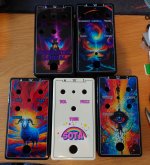
DSC_3224.JPG
Oh man, I think I'm going to have to send Tayda an email. It has been a while since I last ordered from them and I forgot the prints come out too dark. The bottom row is fine, but Fuzzmaster General is pretty much ruined. It looks even darker IRL than in the picture. I attached the PDF file, would someone to be kind enough to take a look and see if it looks too dark to them? Is something really wonky with the calibration of my screen or something like that? It looks fine to me on my phone and PC, but the pot labels are pretty much unreadable except up close in the finished product.

Edit: I did send Hugo an email about the prints coming out too dark before but he basically replied "yeah it can be hard to know how it will come out" which obviously doesn't help me at all. Is it some setting on my end? Should I just run some brightening or desaturation filter as a last step?

I don't know of any other UV printing service that comes anywhere even near the same prices in EU, otherwise I might switch to them because this really sucks.

Edit2: I guess it might be the black enclosures because the cream one looks exactly like it looks on my screen? I didn't have a double white layer this time, but I have had it previously and it didn't really matter, they've been coming out too dark for a while.
 

Attachments

Last edited:
Edit2: I guess it might be the black enclosures because the cream one looks exactly like it looks on my screen? I didn't have a double white layer this time, but I have had it previously and it didn't really matter, they've been coming out too dark for a while.

Not to sound like a Tayda apologist, but even with a white layer, low-key areas in print will always trend darker, especially darker than on screen, no matter the medium. Sorry they didn't come out the way you wanted. Going off of what's on screen is a gamble, unless you have something like a 100% Adobe RGB setup (e.g. in photography: you shoot Adobe RGB, you edit a calibrated Adobe RGB monitor setup, and print with a calibrated Adobe RGB pipeline).

The odds are better if you have a monitor with adequate contrast ratio, 10-bit RGB throughput, and use a calibrator, but it's no guarantee.

I would look at your colors and see what your total ink saturation looks like. Also be sure you have your "Appearance of Black" (assuming you're using Illustrator) preference to "Accurate" for both display and export.


Another thing I sometimes do (not feasible if you're tracing pixel art to vectors at over 32-colors) is look at the swatches by selecting my art, going to the swatches panel (I'd recommend clearing out the swatches first, by the way), and going to the pulldown menu and selecting "Add Selected Colors" which will do just that. You can then inspect to see what the ink saturation is.

It is, however, much easier to accomplish if everything you're doing is at least in CMYK all the way through: I mean, from the raster/pixel image you intend to auto-trace, all the way to the end. Without starting there like I outline in the previous post, you run the risk of having almost every gray value (dark to light) come out as rich black, especially on the dark end.

Hope that helps for the future.

If you did all of that before, all I can say is sorry, I guess : /
 
Not to sound like a Tayda apologist, but even with a white layer, low-key areas in print will always trend darker, especially darker than on screen, no matter the medium. Sorry they didn't come out the way you wanted. Going off of what's on screen is a gamble, unless you have something like a 100% Adobe RGB setup (e.g. in photography: you shoot Adobe RGB, you edit a calibrated Adobe RGB monitor setup, and print with a calibrated Adobe RGB pipeline).

The odds are better if you have a monitor with adequate contrast ratio, 10-bit RGB throughput, and use a calibrator, but it's no guarantee.

I would look at your colors and see what your total ink saturation looks like. Also be sure you have your "Appearance of Black" (assuming you're using Illustrator) preference to "Accurate" for both display and export.


Another thing I sometimes do (not feasible if you're tracing pixel art to vectors at over 32-colors) is look at the swatches by selecting my art, going to the swatches panel (I'd recommend clearing out the swatches first, by the way), and going to the pulldown menu and selecting "Add Selected Colors" which will do just that. You can then inspect to see what the ink saturation is.

It is, however, much easier to accomplish if everything you're doing is at least in CMYK all the way through: I mean, from the raster/pixel image you intend to auto-trace, all the way to the end. Without starting there like I outline in the previous post, you run the risk of having almost every gray value (dark to light) come out as rich black, especially on the dark end.

Hope that helps for the future.

If you did all of that before, all I can say is sorry, I guess : /
Thanks for the reply! Appearance of black is accurate for both, I've already checked that before. My monitor definitely isn't high quality in the image sense, I guess the phone should be better but I don't really see any significant difference in it.

How would I check total ink saturation with vectorized raster images? There's no single color I could change - I can change them all using the Edit Colors menu, but I don't really know what I should aim for (unless I should aim for just some gray-ish version of what I want). Didn't find anything by googling.

I guess one thing I could do is turn my rasters into CMYK before doing the Image Trace, if that would be helpful. Maybe I'll try that next time.
 
How would I check total ink saturation with vectorized raster images? There's no single color I could change - I can change them all using the Edit Colors menu, but I don't really know what I should aim for (unless I should aim for just some gray-ish version of what I want). Didn't find anything by googling.
Another thing I sometimes do (not feasible if you're tracing pixel art to vectors at over 32-colors) is look at the swatches by selecting my art, going to the swatches panel (I'd recommend clearing out the swatches first, by the way), and going to the pulldown menu and selecting "Add Selected Colors" which will do just that. You can then inspect to see what the ink saturation is.
Sorry, that wasn't clear—check the swatches, or even, skipping the "adding colors to swatch palette" step, you could, with the white arrow tool, select a single piece of a dark gray area and then see what the combined CMYK values are.
 
Sorry, that wasn't clear—check the swatches, or even, skipping the "adding colors to swatch palette" step, you could, with the white arrow tool, select a single piece of a dark gray area and then see what the combined CMYK values are.
Right, thanks, I didn't realize I could just select one area and check the values. Any tips on what I should aim for with dark gray? Or should I just check what I usually have and aim for a little lower than that?
 
Right, thanks, I didn't realize I could just select one area and check the values. Any tips on what I should aim for with dark gray? Or should I just check what I usually have and aim for a little lower than that?
Bear in mind I have almost 20 yrs experience in the print design world, so a lot of it is just instinct / gut feeling mixed with automatic process, and it can be hard to explain briefly, so apologies if there are any gaps.

Avoid anything K=100—typically I make my darkest gray ~K=90—again, this is hard to do on screen. Ink saturation can be viewed in illustrator, looking at the Color palette where you see the CMYK sliders. But this sort of thing, especially if you want to do a full-color, realistic-looking image like you have on the fuzzmaster general, it's best to do all of the CMYK adjustment in Photoshop, then import the image into Illustrator to auto-trace. But again, I don't typically do more than 64 colors when I do an auto-trace (that's the extreme end; typically it's >32 colors). The most important part is the black generation portion of that CMYK image prep.


For some applications what I will occasionally do is rather extreme and may not be to everyone's taste. I look at the areas of the design and then look at whatever enclosure color I'm going to use, and see if I can remove any areas of ink that are either the same, or near-as-makes-no-difference the same. Again, I'm personally not into the full, photorealistic graphic end of things.

Here's are two examples. I knew they would both be on black enclosures, and I planned my image adjustment accordingly so that I could 1) have high enough contrast to do what I wanted here, and 2) few enough colors so I could manually tweak them.

fxqhav1.jpg

So those areas which were dark enough just got deleted in the final print file (again, I've mentioned this, but as a general rule, NEVER make these kinds of destructive changes with your main, working art file; always save-as a new file for print export purposes).

You might be able to tweak the contrast on your base image so more of the dark areas around the smoky, cloudy, aurora-y areas could simply be removed.

Here are the results of those two examples; your mileage may vary:

xTjlGnb.jpg
hA5lS37.jpg


I hope that is helpful. My process is to see the limitations/intentions of printing on enclosures (simpler is better) and work within those constraints.

 
Bear in mind I have almost 20 yrs experience in the print design world, so a lot of it is just instinct / gut feeling mixed with automatic process, and it can be hard to explain briefly, so apologies if there are any gaps.

Avoid anything K=100—typically I make my darkest gray ~K=90—again, this is hard to do on screen. Ink saturation can be viewed in illustrator, looking at the Color palette where you see the CMYK sliders. But this sort of thing, especially if you want to do a full-color, realistic-looking image like you have on the fuzzmaster general, it's best to do all of the CMYK adjustment in Photoshop, then import the image into Illustrator to auto-trace. But again, I don't typically do more than 64 colors when I do an auto-trace (that's the extreme end; typically it's >32 colors). The most important part is the black generation portion of that CMYK image prep.


For some applications what I will occasionally do is rather extreme and may not be to everyone's taste. I look at the areas of the design and then look at whatever enclosure color I'm going to use, and see if I can remove any areas of ink that are either the same, or near-as-makes-no-difference the same. Again, I'm personally not into the full, photorealistic graphic end of things.

Here's are two examples. I knew they would both be on black enclosures, and I planned my image adjustment accordingly so that I could 1) have high enough contrast to do what I wanted here, and 2) few enough colors so I could manually tweak them.

fxqhav1.jpg

So those areas which were dark enough just got deleted in the final print file (again, I've mentioned this, but as a general rule, NEVER make these kinds of destructive changes with your main, working art file; always save-as a new file for print export purposes).

You might be able to tweak the contrast on your base image so more of the dark areas around the smoky, cloudy, aurora-y areas could simply be removed.

Here are the results of those two examples; your mileage may vary:

xTjlGnb.jpg
hA5lS37.jpg


I hope that is helpful. My process is to see the limitations/intentions of printing on enclosures (simpler is better) and work within those constraints.
Those enclosures came out amazing! Thanks again, I'll also check the post you linked in detail.

Does removing the black parts really make a difference for the rest of the image? Or is it just a case of saving ink (and making sure it ends up black)? My point is that the black parts can be black, that doesn't really matter. It's more of an issue with the rest of the image in my case. And I'm wondering since how I do it is that for the "full coverage" images (so everything inside the border is filled) I just have a border sized white area. Of course if I have empty spaces I can duplicate that and turn it to the white background so that the empty spots don't have the white background, but I'm scared of bleed possibly messing it up if I do holes.
 
Back
Top